LinkedIn Business Manager: give the right access without giving away control
INTERACTIVE HANDOFF BUILDER
Build a reviewable access handoff
Enter who owns the Business Manager, who needs access, what work they need to do and the evidence for each step. Check the handoff to see what is ready and what still needs proof.
Loading organization.
Next action
Loading the fictional example.
The evidence check loads with the example.
Show evidence and evaluation details
LinkedIn Business Manager is the place where an organization manages its LinkedIn Pages, ad accounts, people and partner organizations. Campaign Manager is where someone builds and runs campaigns. Business Manager controls who can reach the assets needed to do that work.
If you only need the official destination, use one of these links:
- Sign in to LinkedIn Business Manager
- Create a Business Manager account
- Find your Business Manager name and ID
- Review current roles and permissions
- Troubleshoot Business Manager access
If you are onboarding an employee, replacing an agency or sharing assets with a new partner, signing in is the easy part. The real job is to preserve ownership, request the smallest access needed and prove the person or partner can complete the work.
This guide gives you a handoff record for that job. It keeps the controlling organization, asset owner, assignee, role, request, approval and native verification as separate facts.
Product sources checked: 2 October 2026. LinkedIn marked its roles page as updated six months earlier. Several setup pages were marked as updated two years earlier, so use the linked current Help pages and confirm the labels in your account before changing access.
Map ownership first · Choose person or partner · Pick the smallest role · Verify the handoff · Build the handoff record
Map ownership before you request access
Start with the controlling organization and every asset needed for the work. Do this before choosing a role.
For each Business Manager, Page and ad account, record:
- the native name and ID;
- the organization that owns or controls it;
- whether your organization owns it or receives shared access;
- the source and date of the ownership evidence;
- the work the new assignee must perform; and
- any owner or relationship you cannot confirm.
Unknown is a valid value. Guessing the owner because the same brand name appears on two assets is not.
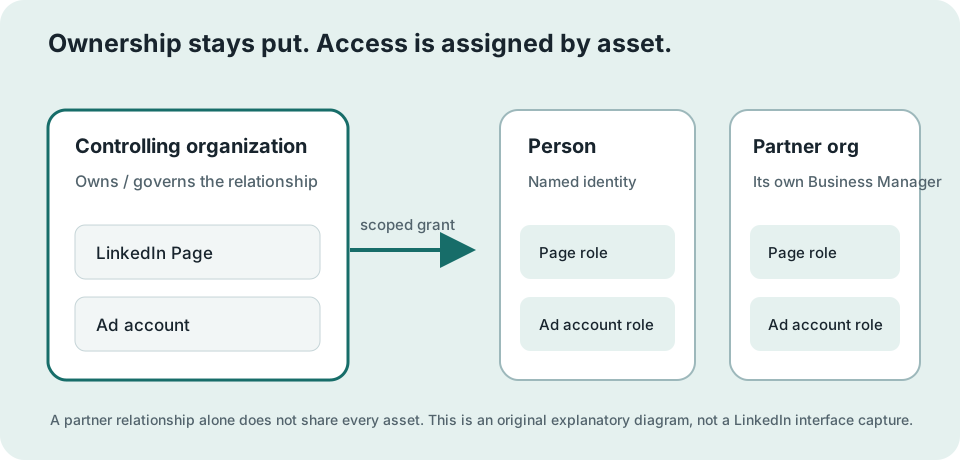
Ownership and access answer different questions:
- Ownership: Which organization controls the asset and can decide who receives access?
- Access: Which person or partner can perform which actions on that asset?
Giving an agency access should not require giving the agency ownership. Replacing an agency should not require rebuilding an ad account simply because nobody recorded who controls it.
Do not stop after finding the ad account
LinkedIn says someone advertising on behalf of an organization can need access to both the ad account and the LinkedIn Page. Those are separate permissions.
An employee may be able to open the ad account, view reports and edit a campaign while still lacking the Page permission needed to create or sponsor an ad. A successful ad-account check does not make the whole handoff complete.
Your inventory should therefore have one row for every required asset. If the work uses one ad account and two Pages, all three need an owner, a requested role and a named verification action.
Choose a person or a partner
LinkedIn Business Manager has two different access paths. Pick the path that matches the assignee.
Add a person
Use the person path when one individual needs access through your Business Manager.
LinkedIn says you must invite the person to Business Manager before assigning them to a Page or ad account. The person needs a LinkedIn profile. The invitation email does not have to match the email on that profile, but the invitation still has to be accepted before access becomes active.
The person then receives:
- a Business Manager role; and
- a separate role on each Page or ad account needed for the work.
The Business Manager role does not replace asset access.
Use LinkedIn's invite-people instructions for the current path. Record the invited person, requester, approver, invitation time and acceptance time separately.
Add a partner organization
Use a partnership when another organization manages work through its own Business Manager. This is usually the clearer route for an agency or outside company because the partner organization manages its own people.
LinkedIn says an admin needs the partner's exact Business Manager ID. Do not infer that ID from the company name. Ask the partner to supply it from its Business Manager account details.
Adding the partner creates the relationship. It does not automatically share any ad account, Page, Matched Audience, allow list or block list. Share each required asset explicitly and record the role attached to it.
LinkedIn's current help says the partner can see and act on only the assets shared with it. Your handoff still needs a native check from the partner side because the relationship record does not prove that the expected asset and action are available.
Use LinkedIn's partnership overview and add-partner instructions for the current steps.
A quick choice
Use a person when one named individual should work inside your organization’s Business Manager. Use a partner when a separate organization should receive selected assets through its own Business Manager.
If the record says “agency partner” but the assignee is entered as a person, stop and repair the assignee type. Do not make the data fit a shortcut.
Choose the smallest role that supports the work
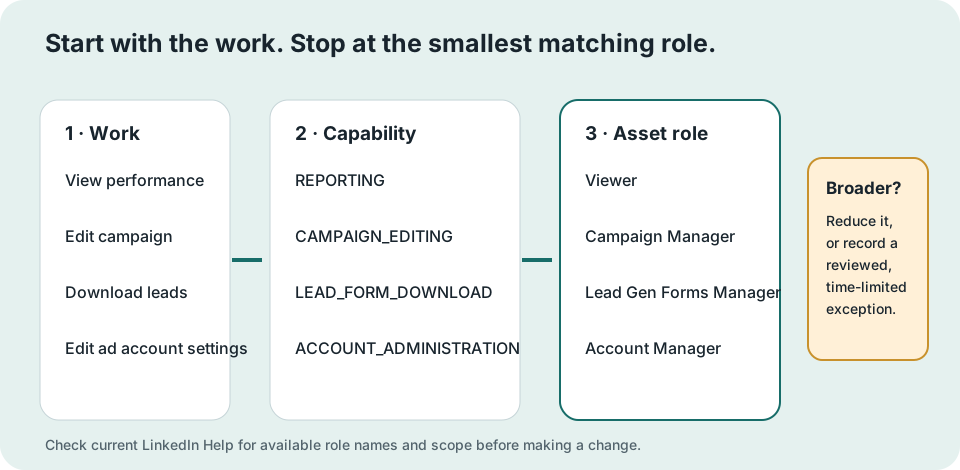
Start with the job, then choose the role. “Give them admin so nothing breaks” is not a job description.
LinkedIn currently documents three Business Manager roles:
- Admin: can use every Business Manager permission, including managing people, assets and partner Business Managers.
- Employee: can receive access to Pages and ad accounts but cannot take administrative actions in Business Manager.
- Contractor: has the same non-administrative pattern as Employee and identifies someone who works outside the organization.
LinkedIn recommends keeping at least two Business Manager admins and limiting that role to senior employees because of its access level.
After the Business Manager role, choose a role for each asset.
Current ad-account roles include:
- Billing admin for payment information and the full ad-account permission set;
- Account manager for account settings, user access, campaign work, reporting and downloads, without payment editing;
- Campaign manager for creating and editing campaigns, ad sets and ads;
- Creative manager for creating and editing ads in existing campaigns and ad sets; and
- Viewer for viewing performance and downloading reports.
Current LinkedIn Page permissions are separate. They include Page admin roles and paid-media roles such as Sponsored Content poster, Lead Gen Forms manager and Landing Pages manager.
Use the current LinkedIn role table when you make the request. Platform wording can change.
Four examples of role reasoning
These examples are fictional. They do not describe a Maestro or client account.
Employee editing campaigns and sponsoring Page content
The employee needs a non-admin Business Manager role, an ad-account role that supports campaign editing and the required paid-media Page permission. The invitation has been accepted and the request approved, but nobody has recorded a successful campaign edit or sponsorship check.
State: VERIFY_ACCESS. The next action is to have the employee complete the two named native checks and attach dated evidence.
Agency receiving one ad account and one Page
The brand keeps ownership. The agency supplies its Business Manager ID. The brand adds the partner, shares one ad account and one Page with scoped roles, records request and approval times, and receives dated native checks from the agency for both assets.
State: HANDOFF_COMPLETE. The result applies only to those two assets and the work named in the record.
Ad account has an owner; Page owner is unknown
The team knows who controls the ad account. Nobody can produce current ownership evidence for the Page needed to sponsor ads.
State: REPAIR_REQUIRED. The next action is to name an evidence owner and obtain the Page ownership record before changing access.
Contractor receives Business Manager Admin for reporting
The contractor only needs to view performance and download reports. The request asks for Business Manager Admin.
State: REPAIR_REQUIRED. Reduce the request to the smallest roles that support reporting, or record a specific justification for the broader access and send it through review.
Request, approval and verification are three events
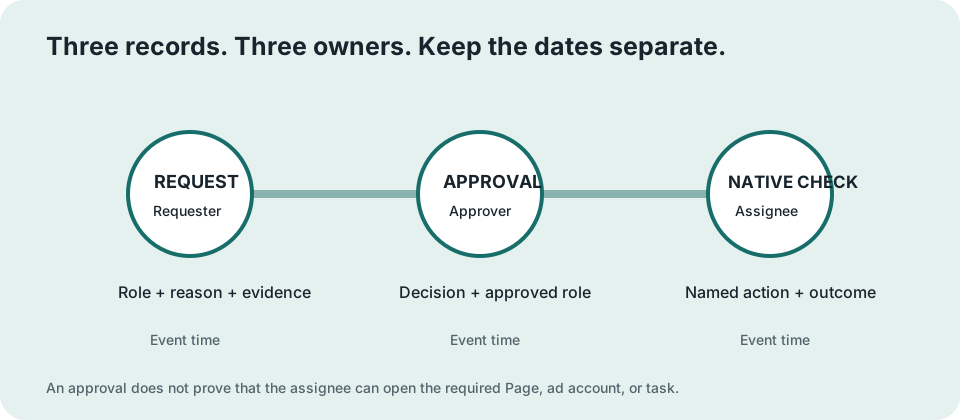
The access request states what the assignee needs and why. The approval records who authorized it. The native verification proves the assignee can complete the required action.
Do not combine them.
For every asset, save:
- Request: requester, requested role, business reason, timestamp and evidence reference.
- Approval: approver, approved role, timestamp and evidence reference.
- Verification: assignee, exact native action, result, timestamp and evidence reference.
Approval is not verification
An approver can grant the correct role while the assignee still cannot complete the work. The wrong Page may have been shared. The invitation may still be pending. The person may have ad-account access without the required Page permission.
Name a native action that matches the work:
- A reporting viewer opens the exact ad account, sees the required date range and downloads a report.
- A campaign manager opens the exact campaign and reaches the permitted edit screen without publishing a change.
- A Sponsored Content poster confirms the correct Page is available for the required sponsored-content action.
- A Lead Gen Forms manager opens the correct form or lead-download area for the named Page.
- A partner confirms the exact shared asset appears inside the partner Business Manager and completes the agreed read-only or permitted action.
Use a safe read-only action when it can prove the permission. Do not create or launch a campaign just to produce documentation.
Sign-in is not verification
LinkedIn's troubleshooting page says a person who can sign in but sees no ad accounts or Pages has not been added to those assets in Business Manager.
A sign-in screenshot proves the person reached Business Manager. It does not prove access to the Page, ad account or task needed for the work.
State: VERIFY_ACCESS. Name the missing asset check.
Conflicting evidence needs repair
Suppose the approval is dated after the verification, or the approval names Viewer while the verification claims a campaign edit. Preserve both records.
State: REPAIR_REQUIRED. Ask the evidence owner to correct the record or rerun the native check after the approved role is active. Do not silently reorder dates or upgrade the role in the handoff.
Four handoff states, in order
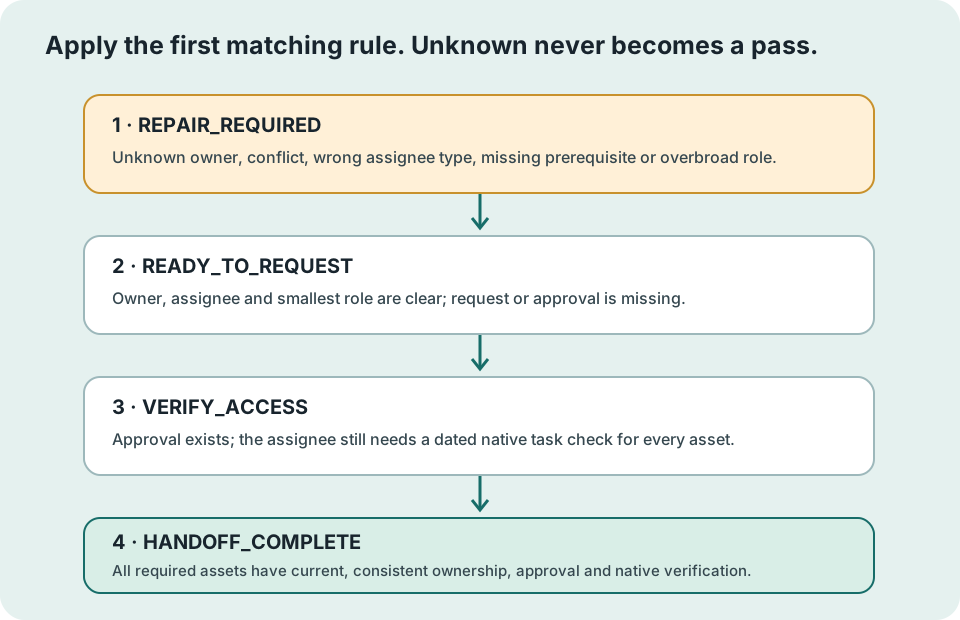
The worksheet applies the first matching rule.
REPAIR_REQUIREDwhen the controlling organization or owner is unknown; ownership conflicts; the assignee type is wrong; a prerequisite is absent; the requested role is broader than the documented work; or the evidence conflicts.READY_TO_REQUESTwhen the owner, assignee, asset, business reason and smallest role are clear, but no request or approval is recorded.VERIFY_ACCESSwhen approval is recorded but the assignee has not completed the named native check with a timestamp and evidence reference.HANDOFF_COMPLETEwhen every required asset has consistent ownership, role, request, approval and native verification evidence.
This order matters. A polished approval record cannot override unknown ownership. One successful asset check cannot override a missing Page. A broad role cannot pass because it happens to work.
A complete state has a narrow meaning
HANDOFF_COMPLETE means the named assignee can perform the named work on the named assets as of the recorded verification time. It does not prove every permission in the LinkedIn account. It does not prove the campaign is well built, correctly measured or ready to launch.
Use the LinkedIn ads audit for campaign diagnosis. Use LinkedIn ad types for format choice. Use the LinkedIn ads agency guide if you are still choosing a partner.
Build a reviewable access handoff
The interactive handoff workspace is above. Use it to build a reviewable access record, then continue for the ownership and role guidance.
Use the guided form to enter the organization, assignee, required assets, roles and dated evidence. Select Check handoff to see the current state and the exact next action. The form keeps the browser result and every export tied to the same facts.
How the verified approver works in this worksheet
The worksheet needs one verified approver from the controlling organization. That person's dated identity receipt starts the evidence chain used to check requests and approvals. This is a worksheet rule, not a LinkedIn role or setting.
Choose an approver only after you confirm that person's identity and authority to attest the controlling organization. The identity receipt must name the same person as subject, actor and custodian. The organization's identity receipt must use that person as actor and custodian too. Do not assign this authority to make an incomplete record pass.
At minimum, the record should include:
- controlling organization and Business Manager name/ID;
- assignee name, type and native identifier;
- documented work and business reason;
- every required Page and ad account;
- owner and ownership-evidence reference for each asset;
- requested Business Manager, ad-account and Page roles;
- requester, approver and their evidence references;
- request, approval and verification timestamps;
- exact native verification action and result for every asset;
- unresolved questions and their owners;
- current state, reason and exact next action; and
- source dates and review date.
Blank values remain Unknown. Zero is a number. Unknown is missing evidence. Keep them separate.
Open the blank worksheet when you want to collect facts before using the form. Download JSON when another system or browser session needs the complete record. Download CSV for an asset and permission inventory. Download Markdown when a person needs to review the handoff.
Use the build prompt with a completed or partial JSON record. It preserves supplied facts, returns the handoff state and asks for exact missing evidence. Use the review prompt after the record is assembled; it checks ownership, assignee type, role scope, asset coverage, request, approval and native verification.
Download blank JSON · JSON Schema · Complete fictional example · Asset inventory CSV · Standalone build prompt · Standalone review prompt
Use the build prompt with a saved record
Attach or paste the saved JSON record with the build prompt. When the record is incomplete, the response names the missing owner, ID, role reason, approval or native check instead of inventing one.
Check that the action list names the affected asset and the missing evidence. If an asset owner is unknown, the response should ask for that asset's verified owner organization ID and a current ownership receipt.
Use the review prompt to check:
- ownership before delegated access;
- person versus partner type;
- role scope against documented work;
- Page and ad-account coverage;
- request, approval and verification as separate records;
- chronological and factual conflicts;
- unknown values and evidence owners; and
- the four states in the required order.
Watch the setup branches in context
B2B Hero's LinkedIn Business Manager tutorial, published 6 November 2025, shows four interface branches needed for this handoff:
- 01:17: open the partnership branch before sharing assets;
- 01:55: add a person before assigning asset access;
- 02:28: distinguish claiming ownership from requesting access; and
- 04:20: add the partner before granting access to a specific ad account.
DATED PRACTITIONER WALKTHROUGH · 5:02
LinkedIn Business Manager setup branches
This video helps identify the interface areas. Current LinkedIn Help pages control platform facts.
Use the tutorial to recognize the branches. Use current LinkedIn Help for role names, prerequisites and platform behavior. The video does not prove anything about your live account.
Common LinkedIn Business Manager questions
Is LinkedIn Business Manager the same as Campaign Manager?
No. Business Manager organizes Pages, ad accounts, people and partner access. Campaign Manager is where permitted users work with advertising accounts and campaigns. A Business Manager role and an ad-account role are separate.
Do I need LinkedIn Business Manager to run ads?
The page does not assume every advertiser needs the same setup. Business Manager is designed for organizations managing Pages, ad accounts, people and partners centrally. Check the current product and account requirements for your situation before creating a new account or moving assets.
Can an agency use my LinkedIn ad account without owning it?
LinkedIn partnerships are designed to share specific assets between Business Managers. Keep the brand's ownership recorded, add the agency's exact partner Business Manager ID and share only the assets and roles needed for the work.
Should I make my agency a Business Manager Admin?
Only when the documented work requires Business Manager administration and the broader access is approved. A partner receiving selected assets usually needs scoped asset access, not control of the brand's Business Manager. Start with the work and current role scopes.
Why can someone sign in but see no ad account or Page?
LinkedIn says the person still needs to be added to those assets in Business Manager. Confirm invitation acceptance, then review each required Page and ad-account assignment.
Does ad-account access include Page access?
No. LinkedIn documents ad-account and Page permissions separately. Advertising on behalf of an organization can require both.
When is the handoff complete?
The named owners, assignee, roles, request, approval and dated native checks must be complete and consistent for every required asset. A sign-in, invitation or approval alone is not enough.
Should we share a password to avoid an access problem?
No. Repair the person, partner, ownership or role setup. The handoff never recommends password sharing or an ownership transfer merely to simplify access.
Finish the handoff, then review the campaign
Complete the access record before campaign work changes hands. That gives the owner and the operator the same list of assets, roles, evidence and open repairs.
If you want an independent review of the operating model, campaign structure, targeting, creative and measurement after access is verified, use the Demand Gen Roast. The access handoff prepares the evidence. It does not claim Maestro already has access or has reviewed the account.
Sources and limits
Current platform facts come from LinkedIn's Business Manager product page, roles and permissions, account creation, account details, access troubleshooting, invite-people instructions, partnership overview and add-partner instructions. These pages were captured on 2 October 2026.
The B2B Hero video is a dated practitioner walkthrough. It helps a reader recognize the interface branches. LinkedIn's current Help pages control role names and access facts.
The examples on this page are fictional. They test the handoff rules and do not report Maestro or client account results. No source reviewed proves your current owner, role, approval, native access, campaign result, ranking or indexing outcome. Those values stay Unknown until your record contains dated evidence.