
LinkedIn Revenue Attribution Report: setup checks and revenue review
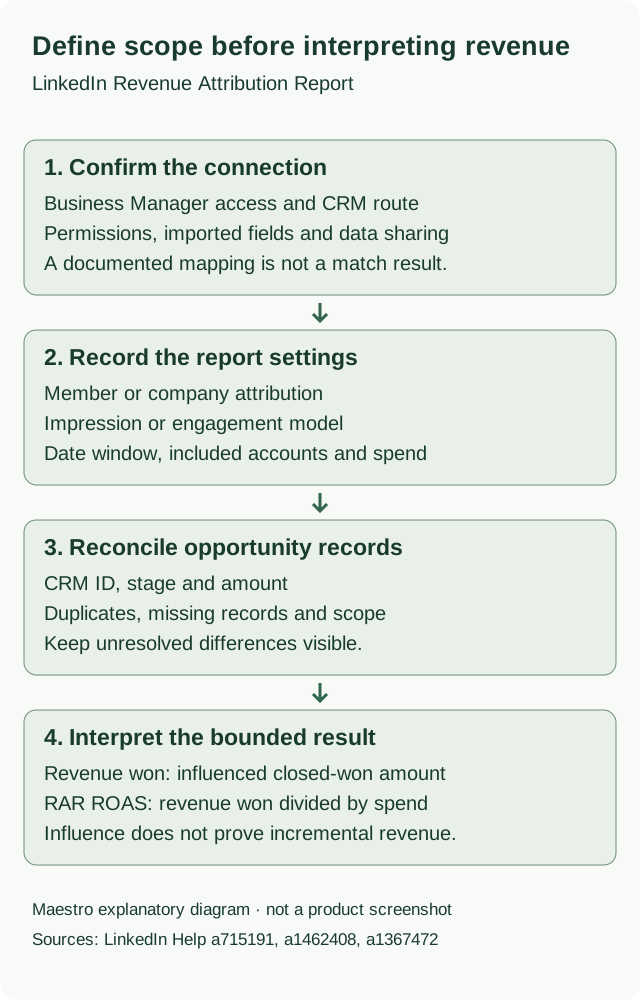
LinkedIn’s Revenue Attribution Report connects CRM opportunities with LinkedIn ad activity so you can review influenced pipeline, closed-won revenue, and return on ad spend. Open it in Business Manager → Revenue attribution after connecting a supported CRM. Before quoting a revenue number, save the account scope, influence settings, and CRM snapshot behind it so someone else can check the same result.
This guide takes you through that review. You’ll leave with a readiness record, a comparison you can reproduce, and a short explanation of which opportunity differences still need checking. For the recurring monthly report, use the LinkedIn ads reporting guide.
Start with the review worksheet
Open the revenue attribution review worksheet. Fill in the account and connection evidence first, then record the report settings and reconcile a small opportunity sample. Leave missing evidence as Unknown and give each unresolved item an owner and a next check.
If you prefer a spreadsheet, download the readiness CSV and interpretation CSV. The fictional opportunity sample and completed review example show how to keep won revenue, open pipeline, and unresolved records separate. These are editable records, not connections to your CRM.
Use the readiness record to check setup, then the opportunity sample to check the figures. A successful connection does not confirm that every opportunity is included correctly.
Choose the reporting surface
LinkedIn has two related places to see CRM revenue metrics. Choose the one that supports your task before looking for an export.
| Your task | Where to work | What to record |
|---|---|---|
| Review native influence settings and investigate the opportunities behind the figures | Business Manager → Revenue attribution | Selected ad accounts, report dates, lookback, attribution model, member/company scope, and the opportunity or company export |
| See pipeline and revenue metrics alongside campaign delivery | Campaign Manager → Advertise → Pipeline column view | The displayed ad-set metrics and their scope. LinkedIn currently says this Pipeline view cannot be exported. |
Business Manager RAR has exportable opportunity and company reports. The Campaign Manager export limitation applies to its Pipeline view. It does not mean that every LinkedIn revenue report lacks an export. These distinctions come from LinkedIn’s RAR overview and Pipeline metrics documentation.
Scope also differs. LinkedIn’s Business Manager metric definition describes spend across owned ad accounts; the Campaign Manager Pipeline definition uses ad-set spend. Do not divide a Business Manager revenue total by one ad set’s spend and label the result the platform’s ROAS.
Check CRM access before connecting
LinkedIn documents Salesforce, Dynamics 365, and HubSpot as supported CRM connections. You need Business Manager admin access to connect. The CRM administrator must also confirm the permissions and edition requirements for the selected route.
Use Verified only when you have the corresponding account evidence. Use Unknown when you have not checked, and Blocked when a known requirement is unmet. Assigning an owner to a missing requirement does not make it verified.
| Check | Evidence to collect | If it is missing |
|---|---|---|
| Correct Business Manager | Business Manager identity and the administrator who will connect | Ask the account owner to confirm the intended business |
| Ad-account ownership | Which accounts the business owns, and which are only shared with it | Have the Business Manager admin resolve ownership and intended reporting scope |
| CRM connection route | CRM name, environment, chosen route, and current requirements | Ask the CRM owner to confirm the route before requesting a plan change |
| Installer access | Actual CRM permissions, required object access, and API access where applicable | Ask the CRM admin for the specific missing permission |
| Data-sharing scope | Approval covering the connected CRM and account users who can see its metrics | Resolve the intended scope with the responsible owner before connecting |
| Connection and report state | Connection status, observation time, and report generation or refresh evidence | Record Pending or Unknown; do not label the report ready from a connection message alone |
The ownership check matters for agencies. LinkedIn says CRM data shared from Business Manager is available to the business’s owned ad accounts, not ad accounts owned by another business and shared with it. Its CRM Sync documentation also says revenue metrics and auto-created conversions become visible to all Campaign Manager roles in those owned accounts. Connecting the CRM changes who can see those metrics.
Salesforce
LinkedIn recommends a Salesforce Integration User, requires API Enabled in the Salesforce profile, and calls for View or Read-only access to the imported objects and fields. The documented connection starts at Business Manager → Settings → Connect next to Salesforce. The CRM owner should confirm the production environment and access before completing authorization. See the Salesforce connection instructions.
For revenue reconciliation, check which opportunity amount field is used. LinkedIn documents Opportunity.Amount as the default and supports a custom opportunity amount field. A difference between that mapped field and the field in your finance export can explain a value mismatch without establishing a tracking failure.
Dynamics 365
LinkedIn recommends a Dynamics 365 CRM Integration User with View or Read-only permission on the imported objects and fields. Its setup also asks for the environment URL. Start at Business Manager → Settings → Connect next to Dynamics 365, and use the current Dynamics instructions to check the required access.
Record the environment as well as the CRM name. Two reports from different environments are not a reconciliation pair, even if their opportunity names look similar.
HubSpot
LinkedIn’s HubSpot connection instructions specify Sales Hub Pro or Enterprise and admin access in Business Manager and HubSpot. The documented route installs LinkedIn CRM Sync, selects Business Manager, chooses the business to connect, and completes the sync setup in HubSpot.
HubSpot’s combined Sales Navigator and Business Manager CRM Sync guide also lists an assigned qualifying Sales Hub seat and Sales Navigator Advanced Plus. Its connection procedure goes through Sales Navigator. Those pages describe different routes, so the combined guide does not establish a universal Sales Navigator requirement for every direct Business Manager connection.
If your team has Sales Hub Professional but has not confirmed which route it can use, write Entitlement: Unknown. Ask the HubSpot and Business Manager admins to check the selected route in the current account. Keep that question separate from whether you have the permission to install the app. Do not treat a CRM name or a subscription label as proof that setup is ready.
Open the report and save its settings
After the CRM connection succeeds, LinkedIn says report generation can take up to 72 hours. Its connector documents then describe another 24–48 hours before Campaign Manager data is available. The separate Pipeline article says up to 72 hours for Campaign Manager. These documented timings differ; save the connection time and observed status rather than treating one deadline as a guarantee.
A report that is still pending is not evidence of zero influenced revenue. Check whether the connection completed, whether the Business Manager report has been generated, and whether you are viewing the intended surface. Preserve any error text for the CRM or Business Manager owner before making changes to the connection.
Once the report is available, follow LinkedIn’s RAR usage instructions:
- Sign in to Business Manager and open Revenue attribution from the left menu.
- Use Ad accounts to select the account scope. Record the selected account IDs or aliases in your private review record.
- Use Time range to select the reporting period. Record the start and end dates.
- Record any campaign or ad-set filter. The documentation describes a search bar for campaign names, ad-set names, and ad-set IDs.
- Record the Lookback window. LinkedIn lists 30, 60, 90, 180, and 365 days as available choices.
- Record the Attribution model and threshold exactly as shown. LinkedIn describes any, several, or many impressions, or any engagements. Record whether attribution is at the member or company level.
- Save the capture time, refresh evidence, and underlying CRM snapshot or version. Use the opportunity export when you need to inspect individual records.
The report period and lookback window answer different questions. The period selects the reporting dates; the lookback describes how far back qualifying activity can count toward influence. Copy both from the report. Do not substitute the attribution window from an unrelated conversion report.
If a setting is unavailable on the surface you are using, record that limitation. Do not fill it with a control you saw in another report.
Read revenue, pipeline, and ROAS separately
LinkedIn’s metric definitions connect the report to CRM fields. Keep those definitions beside the numbers when writing your conclusion.
| Measure | What it represents | Check before interpreting it |
|---|---|---|
| Revenue won | Amount from closed-won CRM opportunities counted as influenced | Closed and won status, mapped amount field, currency, and inclusion under the recorded settings |
| Pipeline amount | Amount from open CRM opportunities counted as influenced | Open status and amount at the recorded snapshot; do not add it to won revenue |
| ROAS | Revenue won divided by LinkedIn ad spend | Matching account scope and currency, known spend, and the source of the displayed ratio |
| Opportunity win rate | Influenced closed-won opportunities divided by influenced closed opportunities | The closed-opportunity denominator, rather than all open and closed opportunities |
| Average days to close | Average time to close for influenced closed-won opportunities | CRM created and close dates, plus the included population |
The metrics article uses engagement-based wording in its influence definitions. The current RAR overview and usage guide document both impression-based and engagement-based models, with member or company attribution. Describe the number under the model actually selected; do not assume every included opportunity required a click.
Record the platform-reported ROAS separately from a ratio you calculate yourself. If spend is missing, your recalculated ratio is Unknown. If spend is zero, revenue divided by spend has no finite result. Neither case justifies entering 0.0 as a replacement.
Worked examples: reconcile before explaining a change
The following examples are fictional. The figures illustrate review decisions; they are not Maestro or client results. Use private opportunity IDs in your own worksheet and aliases in a shared summary.
A closed-won sample with one unresolved opportunity
Suppose a fictional Salesforce account has verified setup receipts and a generated Business Manager RAR. The capture covers September 1–30, one owned ad account, USD, a 180-day lookback, member attribution, and “any engagements.” It was captured on October 5 at 09:00 UTC against CRM snapshot CRM-100. These are teaching assumptions, not account observations.
The captured report shows $60,000 in influenced won revenue and $90,000 in open pipeline. You select these four CRM opportunities for review:
| Opportunity | CRM state and amount | Report evidence | Review conclusion |
|---|---|---|---|
| Example-A | Closed won, USD 40,000 | Included, USD 40,000 | State and amount agree in the supplied sample |
| Example-B | Closed won, USD 20,000 | Included, USD 20,000 | State and amount agree in the supplied sample |
| Example-C | Open, USD 90,000 | Included, USD 90,000 | Keep in open pipeline; it is not won revenue |
| Example-D | Closed won, USD 15,000 | Inclusion and report amount Unknown | Request association and export-membership evidence from the CRM owner |
A and B sum to $60,000. That checks two included records; it does not resolve D or validate the full report. Do not insert another $15,000 to force the report to match your CRM, and do not silently treat D as excluded. The unknown is whether D belongs in the report under the recorded rules.
If the same recorded scope has $12,000 spend, $60,000 ÷ $12,000 = 5.0. Label this the recalculated influenced-revenue/spend ratio for the supplied figures, with D still unresolved. Keep the $90,000 open pipeline separate. Adding it would turn the headline into $150,000 and incorrectly describe open opportunities as won revenue.
Download the four-row sample, then use the completed review to see how the unresolved row stays in the conclusion.
A stricter rule changes influenced revenue
In a separate fictional comparison, the baseline shows $60,000 won revenue and $12,000 spend. A stricter influence setting shows $36,000 won revenue with the same spend. The ratios are 5.0 and 3.0.
To attribute that difference to the setting, keep the dates, account and campaign scope, currency, attribution unit, lookback, and underlying CRM snapshot fixed. Change only the influence setting and record both exact values. If the CRM refreshed between captures, you cannot isolate the setting’s effect from changed opportunity data.
With those conditions met, the conclusion is: “The stricter influence rule includes $24,000 less won revenue in this comparison.” It is not evidence that the business lost $24,000 of actual revenue. It also does not establish which rule measures the incremental revenue caused by ads.
A model change and a date change cannot be separated
Suppose the baseline covers September and the second capture covers October as well as using a stricter rule. The change could reflect the reporting period, the rule, or changed CRM records. Mark the sensitivity conclusion Hold. Recreate a comparison with the same period and snapshot before explaining the difference as an attribution effect.
Record both columns of settings in the worksheet before writing the explanation. Keep the first capture so a later refresh does not erase what you compared.
Investigate differences without forcing a match
Start with one stable opportunity ID and compare its CRM record with the native report evidence. Names can change and similar names can belong to different opportunities.
| Difference you find | Next check | What to leave unresolved |
|---|---|---|
| CRM has a won opportunity; report inclusion is unknown | Check its associated company/contact, export membership, selected influence rules, and snapshot | Do not infer inclusion or exclusion from the CRM amount alone |
| Opportunity appears in both places with different amounts | Compare currency, mapped amount field, and record-update times | Hold the amount reconciliation until the same field and snapshot are established |
| CRM says closed won; report still shows open | Compare status fields, close date, connection state, and refresh evidence | Do not call the open amount won revenue before the state difference is resolved |
| Campaign Manager and Business Manager show different ratios | Compare the surface, account/ad-set scope, spend, lookback, and capture times | Do not mix one surface’s numerator with another surface’s denominator |
| Report is empty or pending after connection | Confirm the intended CRM environment, completed connection, report generation, and observed status | Keep revenue Unknown unless the evidence establishes a real zero |
The CRM import documentation and metric field definitions help your CRM owner identify the fields being compared. Public field mappings establish what LinkedIn documents; they do not prove that your records matched successfully.
Write a conclusion another person can check
A short conclusion needs the amount, its scope, the influence rule, and the remaining uncertainty. For the fictional sample above:
The captured report lists USD 60,000 influenced closed-won revenue and USD 90,000 open pipeline under the recorded settings. The supplied same-scope spend is USD 12,000, giving a recalculated ratio of 5.0. Two included won opportunities reconcile in the sample. One additional USD 15,000 won opportunity has unresolved membership evidence. The CRM owner will check its association and export membership before we treat this sample as reconciled.
This evidence supports an explanation of what the report counted. It does not establish incremental return: the same opportunity may have interacted with other channels, and an influence rule cannot show what would have happened without the ads. A budget decision needs the wider business evidence and, when the question is causality, an appropriate experiment.
Use the review prompt below to turn your supplied evidence into a structured check. Replace missing inputs with Unknown, keep private IDs out of shared copies, and review the output against the original exports. The prompt cannot inspect an account you have not supplied evidence from.
Copy the report-review prompt
Copy this prompt into your AI tool, then supply your redacted observations. The complete text is also available as a TXT download.
Read or select the full prompt
For the next reporting cycle, carry the accepted scope and remaining checks into the LinkedIn ads reporting worksheet. If you want help reviewing your demand-generation measurement, book a Demand Gen Roast.
Sources and scope
Official public documentation was checked on 29 October 2026. This guide explains the documented workflow; it does not claim access to your Business Manager, CRM, subscription, or matched records. Current account controls and route-specific access still need to be observed.