LinkedIn Message Ads: examples, current rules, and a complete build guide
LinkedIn still documents Message Ads as a Sponsored Messaging format. A Message Ad places one message in a targeted member’s LinkedIn inbox, with one action chosen by the advertiser. LinkedIn also adds a required Not Interested button. The format is billed by cost per send, so the offer has to justify paying to deliver the invitation, whether or not the recipient opens it. LinkedIn's current creation guide, specifications, and product page document the format as of October 2026. Check that it appears for your objective in your own ad account before planning a launch; a public help page cannot establish account eligibility.
This guide takes you from an offer to a finished brief, a tested destination, and a reporting plan. You can copy the blank Message Ad brief, compare it with a completed fictional brief, and run the standalone review prompt against your own answers.
What makes this a Message Ad?
The recipient sees a sender, a subject, a message, and an advertiser CTA in LinkedIn Messaging. The message may include body links. LinkedIn adds Not Interested as another visible option. The format can run with a website visits, lead generation, or website conversions objective. Lead generation requires an attached LinkedIn Lead Gen Form. LinkedIn displays Sponsored Messaging when members are active and controls how often they receive it; there is no reliable send-time or frequency number to insert into a forecast from the published help.
If the recipient needs a path with several choices or follow-up questions, use a Conversation Ad. A Click-to-Message ad starts with an ad in the feed and lets the member initiate the message. Ordinary personal outreach uses a person's own messaging activity; it is not a paid Message Ad. See the broader LinkedIn ad formats guide if you are still choosing a format.
Some older articles say Message Ads were discontinued. That conflicts with LinkedIn's current product, specifications, and creation pages. The defensible statement is that LinkedIn currently documents Message Ads. Your format picker and account settings establish whether you can build one now.
First, decide whether the offer merits a send
The paid unit is a send, not an open or click. Start with a recipient who can recognize why the invitation is relevant. A workshop for people responsible for a specific workflow, a peer event with a defined location, or a report that answers a question they already have can work as a clear offer. “Learn more about our company” asks for attention without telling the recipient what they get.
Write down one action before writing the message: register for the workshop, reserve a dinner seat, or download the report. Then check the destination. If the event date, eligibility, price, or registration terms are missing, fix the offer first. Do not solve a weak offer with a more personal sounding sender or a fabricated deadline.
You will also need a budget decision. LinkedIn charges Sponsored Messaging by cost per send, and its delivered volume depends on the audience and LinkedIn's delivery controls. Estimate allowable cost per completed and qualified outcome from your own economics, then set a test budget you can afford to learn from. Do not borrow an open rate, cost per lead, or preferred weekday from someone else's campaign as a promise for yours. The LinkedIn ads cost guide covers the wider budget decision.
Three real examples, and what to change today
These are historical Sponsored InMail screenshots in LinkedIn's public gallery PDF. The creative shown is from 2015, and the PDF was created in 2016. Open the linked page to inspect the actual layout and wording. The screenshots show an older interface, omit today's automatic Not Interested button, and do not reveal the destination after clicking or any campaign results. The short quotations below identify the original creative; the changes are our proposed adaptations, not advertiser copy.
Marketo: make the event clear before the click
View Marketo's original on PDF page 21. Heidi Bullock, identified as Marketo's VP of Demand Generation, sends a personal event invitation. The visible subject is “Personal Invitation to Marketing's Biggest Online Event of the Year” and the button says “RSVP Now!” The message names the free online event, its September 2, 2015 date, and speakers. The recipient can decide whether the event is relevant before leaving the inbox.
The original subject is 67 characters, seven over LinkedIn's current 60-character limit. For a new event, a proposed subject could be “Join our September marketing workshop,” provided the workshop and date are real. That is our example of a shorter subject, not a Marketo quotation. Verify the speaker list, event terms, date, registration page, and sender approval for any actual campaign. The 2015 audience-size and speaker claims in the screenshot are historical advertiser statements, not present-day proof.
OpenDNS: answer the location question in the message
View OpenDNS's original on PDF page 20. Diana Kaluza asks “Able to join for dinner?” and the button reads “RSVP HERE.” The visible message invites the recipient to an information security executive dinner, explains the peer discussion, and links three city and date choices in the body. The desktop version also has a banner. The city links do real work: someone can find the relevant dinner before clicking the RSVP button.
Current Message Ads allow up to three body links, but each linked text span has a 70-character limit. For a new dinner, check that every city and date is still open, then decide whether one city per ad and landing page would make the action clearer. The old banner is not proof of how a current mobile message will look. Preview both devices, inspect every link, and expect the additional Not Interested button.
Jive Software: a named asset, with two different visible variants
View Jive Software's original on PDF page 23. The desktop screenshot shows Kevin Williams, VP of Global Support, with the subject “Relevant Analyst Research” and button “Download the Report.” It names a Forrester Wave report and connects it to customer support and success work. That gives the download a reason beyond “get our content.” The message also proposes a conversation with Jive, which competes with the report action.
For a new ad, make the report download the one requested action, and check the report's rights, date, claims, landing page, and any form fields. The pictured report is from Q2 2015. The page's mobile screenshot has a different sender and body aimed at a marketer, so it is a separate creative variant, not a responsive rendering of Kevin's desktop copy. Neither variant tells us how the ad performed.
Current Message Ad rules to check
LinkedIn's Message Ad specifications set these limits. Count the final copy as entered in Campaign Manager, including punctuation and any macro syntax.
Swipe to read all columns, or focus the table and use the arrow keys.
| Element | Current documented rule |
|---|---|
| Ad name | Up to 255 characters |
| Subject | Up to 60 characters |
| Message body | Up to 1,500 characters and 10 emojis; LinkedIn generally recommends a body under 500 characters |
| Advertiser CTA | Up to 20 characters, plus LinkedIn's automatic required Not Interested button |
| Body links | Up to three; each linked text span up to 70 characters |
| Destination URL | http:// or https://, up to 1,024 characters |
| Optional footer | Up to 20,000 characters |
| Optional desktop banner | 300 × 250 pixels, JPG, PNG, or nonanimated GIF, up to 2 MB |
The 500-character advice is a writing target, not the body maximum. A longer explanation may be needed, but make every sentence earn its place. A desktop banner is optional; do not count on it to carry a fact the mobile recipient must see.
LinkedIn permits personalization macros in both subject and body. Write and test the generic fallback for each macro, because personalization can be disabled or source data can be missing. A name or job title macro does not mean a person researched that recipient. Read the test message with and without the populated field before using copy that sounds individually written.
Sender permissions are separate from creative permissions. The person creating the Message Ad needs Creative Manager or higher on the ad account. The person requesting a sender needs Account Manager access and a first-degree connection to the proposed sender. The invited sender needs a verified primary email. A Business Manager-owned account adds its documented admin/access condition. The sender must accept the request. LinkedIn's help pages differ on the exact timing of viewer access around the request and acceptance, so check the actual access in your account. LinkedIn's sender permission page also warns that removing a sender or revoking approval can irreversibly cancel affected ads. Treat sender approval as a real permission, not a field you can fill with a name.
For language and geography, LinkedIn says English targeting in Sponsored Messaging reaches members whose profile language is English. For EEA and Switzerland, native inbox delivery is limited to members who opted in. This is a reach condition to consider in the audience and forecast, not a claim that the whole region is excluded.
Build and test the ad in Campaign Manager
The current LinkedIn creation instructions provide the Campaign Manager path. Use this sequence after you have an approved offer, destination, account owner, and proposed sender.
- Create or choose the ad set. Select website visits, lead generation, or website conversions. Confirm that Message Ads appear for that objective in the intended account. Check audience, geography, profile language, budget, and dates. Once launched, the objective and format cannot be changed, so settle the route before launch.
- Open “Ads in this ad set” and select “Create new ad.” Name the ad, choose the accepted sender, or use Add sender to request an eligible sender. A pending request is not an accepted sender. Record who made the request and who can create the creative.
- Enter the message. Add the subject, body, one advertiser CTA, and destination URL. Add an optional footer, body links, or desktop banner only if they help the recipient make the intended decision. LinkedIn adds Not Interested automatically. Check the character counts and both buttons in preview.
- Complete the selected destination route. For a website route, open the final URL after redirects on desktop and mobile, check that the offer matches, and submit a test conversion. Preserve campaign identifiers through to analytics and CRM. For a lead generation objective, retain and test the documented Landing page URL field as well as attaching a Lead Gen Form. Preview its fields, consent and thank-you action, submit a test lead, and verify CRM sync, ownership, and deduplication. This Lead Gen Form guide goes deeper on the form route. A website route does not need a LinkedIn form or form sync.
- Preview and send a test. From the ad's More menu, LinkedIn documents Send test message. Read it on desktop and mobile. Check the sender, subject, line breaks, links, button destination or form, Not Interested option, and macro fallback. A preview or test is a content check; it does not prove that the ad was approved or delivered to the audience.
- Create, activate, and check review. Set the ad status from Draft to Active, then launch the new ad set or save the existing one. LinkedIn reviews the ad before approved delivery. Check the campaign, ad set, and ad statuses separately, then check the review result and actual serving. An Active label alone is not proof of delivery.
Do not label a brief “ready to launch” while the sender is pending, the format is absent from the account, the destination test failed, or the selected form route has no working handoff. The copy can still be a good draft while those checks are open.
A complete fictional message, from offer to outcome
This example is fictional. Cedarline Systems, its sender Alex Rivera, the workshop, destination, and all numbers are teaching material. No account, page, permission, send, or result was verified. The completed brief shows every field and the separate launch holds.
Cedarline wants US operations directors at mid-sized industrial distributors to register for a free 30-minute workshop on mapping an order exception. The fictional workshop is November 19, 2026, 1:00–1:30 p.m. ET; fictional registration closes November 18 at 5:00 p.m. ET. The offer includes a blank exception map and a completed sample. The objective is website visits, the advertiser action is Register, and the success event is a completed registration confirmation. A click by itself is not a registration.
On a small screen, swipe the diagram or focus it and use the arrow keys.
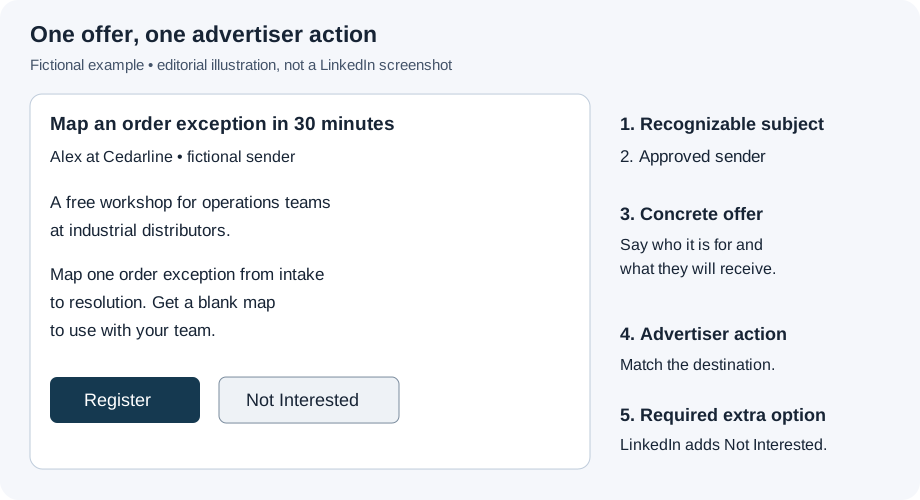
Sender: Alex Rivera, operations education lead at Cedarline
Subject: Map an order exception in 30 minutes
Body: Hi, I’m Alex at Cedarline. On November 19, we’re running a free 30-minute workshop for operations teams at industrial distributors. We’ll map one order exception from intake to resolution and share a blank map you can use with your team. If this is part of your work, you can register for the live session below.
Advertiser CTA: Register
Automatic option: Not Interested
Destination: Workshop registration page, with a tagged URL and confirmation event
The subject names the task and fits the 60-character limit. The body says who is writing, when the workshop happens, who it is for, and what the recipient receives. There is one requested action. No macro pretends Alex looked at a particular person's business. The example uses no body links or banner, and no LinkedIn Lead Gen Form. In a real account, the sender acceptance, permissions, final page, mobile registration, tracking, and preview need dated checks before launch. Review approval and actual delivery are checked after submission and activation; delivery is not a prerequisite for preparing the launch decision. The fictional brief holds launch until its real prelaunch checks exist.
Suppose, only for the calculation, that this ad sent November 2–15, 2026 ET, and a report was pulled December 10 after CRM follow-up through December 9. For the same fictional ad and send window, LinkedIn reports 1,000 sends, 400 opens, 40 Sponsored Messaging clicks, and $800 spend. The website records 10 completed registrations with the exact ad's campaign tags during November 2–18; 10 unique CRM people match after deduplication, and four meet the stated qualification rule by December 9.
That makes open rate 400 ÷ 1,000 = 40%, the calculated clicks-per-send rate 40 ÷ 1,000 = 4%, and LinkedIn's click-to-open rate 40 ÷ 400 = 10%. Cost per send is $800 ÷ 1,000 = $0.80. With the complete fictional website and CRM matching stated above, registration rate is 10 ÷ 1,000 = 1%, qualified rate is 4 ÷ 1,000 = 0.4%, and cost per qualified registration is $800 ÷ 4 = $200. These are arithmetic examples, not Message Ad benchmarks.
Native reporting is aggregate; these rows do not identify which individual recipient opened or clicked. If the CRM match or follow-up window were incomplete, report the downstream rate and cost as Unknown/partial, not zero.
Edit, pause, and report without confusing the states
To edit a Sponsored Messaging ad, LinkedIn's edit instructions take you through Advertise → Campaigns → Ad sets → Ads → Edit. Recheck sender, message, CTA, URL or form, and banner; save the change. The new version goes through review. Already delivered messages do not change. LinkedIn says a Lead Gen Form can be edited on a draft creative; check that restriction before promising a form revision after launch.
For a documented stop at ad-set level, open the account in Campaign Manager, go to Advertise → Campaigns, select the campaign, then use the Off/On toggle on the Ad sets tab to pause the ad set. Check the resulting status. A paused ad set is not running and can be edited and reactivated later, according to LinkedIn's status definitions. LinkedIn's separate Reactivate menu with a new end date or budget is documented for a completed ad set whose lifetime budget or end date was reached. Do not apply that completed-set procedure blindly to a paused set. Do not remove the sender to stop delivery; sender removal or revoked approval can cancel affected ads irreversibly.
For reporting, select Sponsored Messaging as the Campaign Manager column view or in an export. Keep the account, ad, send window, timezone, currency, destination route, and report-as-of date with every number. LinkedIn defines Sends as delivered messages, Opens as first opens, Open rate as opens divided by sends, Cost per send as spend divided by sends, and Click to open rate as clicks divided by opens. Sponsored Messaging clicks include CTA button, body hyperlink, and desktop banner clicks, with Button clicks, Link clicks, and Banner clicks available as breakouts.
October 2026 performance definitions also introduced Sponsored Message impressions and eligible message-content clicks; that metric excludes additional clicks from the same member within 30 days. Keep the selected native column name when comparing periods. Clicks divided by sends can be a calculated rate, but do not call it LinkedIn's native CTR or click-to-open rate. Sponsored Messaging is billed by sends; message clicks are not chargeable clicks.
Join the native totals to website confirmations or Lead Gen Form submissions using campaign identifiers and an explicit event window. Then use the CRM's deduplicated people, qualification rule, and lag cutoff to calculate a qualified outcome. Do not label opens or clicks “leads.” When a denominator is zero, a rate is undefined. When tracking, matching, or follow-up is incomplete, the outcome is unknown or partial. The LinkedIn ads reporting guide covers the wider reporting setup.
Finish your brief
Copy the blank Message Ad brief. Fill the offer, audience, objective, sender, message, one action, selected destination, account checks, and reporting plan. Use Unknown for anything you have not checked. Compare it with the fictional completed example, then use the Message Ad review prompt for a second pass.
Copy the Message Ad review prompt
Copy this prompt into your AI tool and paste your completed message brief. You can compare your work with the worked example. Open the plain-text prompt if you prefer to select it there.
Read or select the full prompt
The review should return three separate judgments: whether the copy is draftable, whether the account is ready for an account check, and whether launch checks are complete. A missing sender approval or broken destination can hold launch without requiring you to throw out otherwise clear copy. If the offer terms themselves are unknown, hold the copy until they are supplied.
If you want help choosing the offer, destination, and qualification path before spending on inbox sends, book a Demand Gen Roast with Maestro.
Sources and scope
The current format and procedures above come from LinkedIn's Message Ads product page, creation guide, specifications, Sponsored Messaging guide, sender permission guide, edit guide, ad-set status guide, and reporting definitions, read October 30, 2026. The three creative examples come from LinkedIn's historical Sponsored InMail gallery. Public documents establish the published rules; the account owner must verify present account access, approval, and delivery.