LinkedIn Follower Ads: plan both versions and measure the follows
LinkedIn Follower Ads promote your LinkedIn or Showcase Page in the right rail. People who do not follow the Page can click Follow directly in the ad. People who already follow it can see a different call to action, such as Visit company. Plan both versions before you approve the creative.
The format fits a specific job: give the right people a reason to keep hearing from your company. That reason should be visible in the Page’s recent posts. If your best argument is a particular article, video, or demonstration, Sponsored Content with a Follow button may give you more room to show it.
This guide walks through that choice, the two creative states, localization, setup, and a report that separates ad-generated follow clicks from the Page’s overall follower growth.
Choose between a Follower Ad and a feed ad with Follow
A Follower Ad is a Dynamic Ad. LinkedIn’s creation guide places it in the right rail and describes a personalized unit with a logo, headline, and Follow button. It is different from a Sponsored Content post in the feed.
| Your immediate task | Route to consider | What to prepare |
|---|---|---|
| Ask relevant professionals to follow the company’s ongoing content | Follower Ad | A short reason to follow, Page identity, both follower states, and the content that backs the promise |
| Demonstrate the value of one post while giving readers a way to follow | Sponsored Content with the engagement objective | The actual post, its creative, and a reporting plan that separates follows from other engagement |
| Send someone to a website or landing page | A traffic-oriented format, such as Spotlight | A destination and an offer that match the click |
For Sponsored Content using the engagement objective, LinkedIn says a Follow button is added by default. The Follow-button documentation explains that this is an in-feed route, including for people who do not follow your Page. An engagement campaign can generate several kinds of interaction, so an engagement total should not be read as a follower total.
The same documentation says Follow-button clicks are chargeable on CPC ad sets, but are not separately charged on CPM ad sets. CPM still charges for impressions. “No separate charge for the Follow click” does not mean the campaign is free.
Choose the route by the message you need to show. A monthly engineering benchmark series can support a direct invitation to follow. A detailed product walkthrough is usually easier to explain through the post itself. Neither route guarantees that every new follower will see every later post.
If the desired next action is a website visit, use the Spotlight Ads guide. For the broader choice of format, start with LinkedIn ad types.
Write the reason to follow before the headline
Write one sentence that answers: what will this audience receive from the Page after following?
“Company updates” could mean almost anything. “Monthly maintenance checklists for plant operations teams” tells someone what the posts cover and how often to expect them. Use that promise only if the Page actually publishes those checklists.
Check the recent Page posts before buying more followers. A recruitment invitation should lead to relevant opportunities and employer content. A technical invitation should lead to technical material. If the ad promises a recurring series that has not started, prepare the series before promoting it.
Keep the audience tied to that promise. Lower-cost followers from unrelated markets can make the acquisition report look better without building the audience the business needs. Specify the relevant countries, roles, industries, and company context before comparing cost per follow. Change those conditions deliberately, rather than broadening them solely to lower a headline number.
For a new-follower campaign, consider excluding people who already follow the Page where that control is available. Still inspect the existing-follower creative state. An audience setting and a creative preview answer different questions, and the preview should make sense if a follower receives it.
Prepare the two native creative states
LinkedIn’s Follower Ads overview says the ad can appear differently depending on whether the member already follows your Page. The creation guide asks you to select a call to action for existing followers and use the dynamic preview to inspect both states.
| Viewer | Action to inspect | What the copy needs to do |
|---|---|---|
| Does not follow the Page | Follow | Explain why the Page is worth following. LinkedIn says the click follows the organization and redirects to its Overview tab. |
| Already follows the Page | The selected existing-follower CTA | Give the member a sensible reason to visit the selected Page area. Check the actual destination in the native preview. |
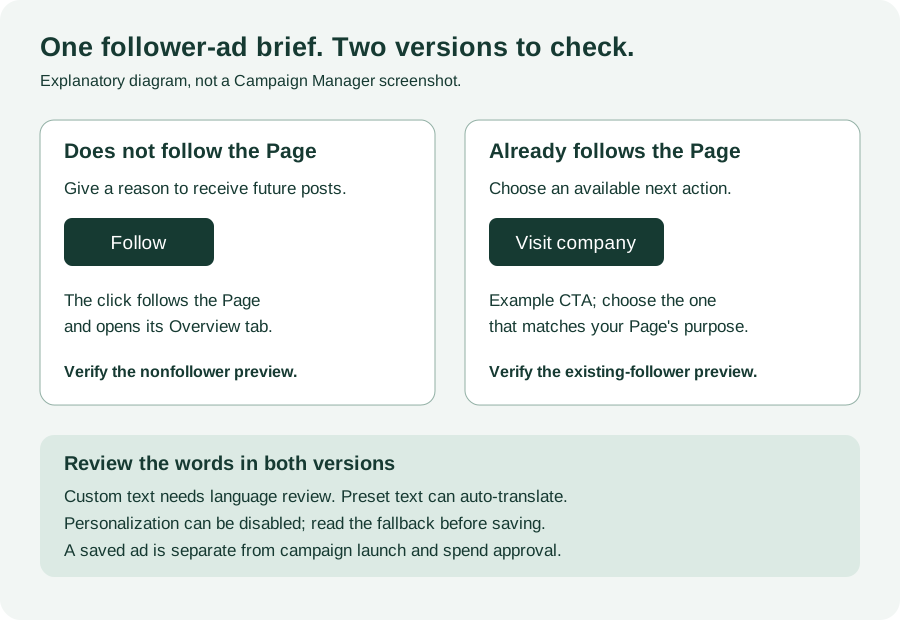
The official specification page lists Visit careers, Visit company, Visit jobs, and Visit life as CTA options. These are not replacements for the non-follower’s Follow action. Select from the options actually offered for your Page, and verify the existing-follower preview before saving the final creative.
Write a headline and description that still make sense in both states. “Follow us now” can become awkward beside a Visit company button shown to someone who already follows. A statement about the content or opportunity can work across the two previews.
What LinkedIn’s own example shows
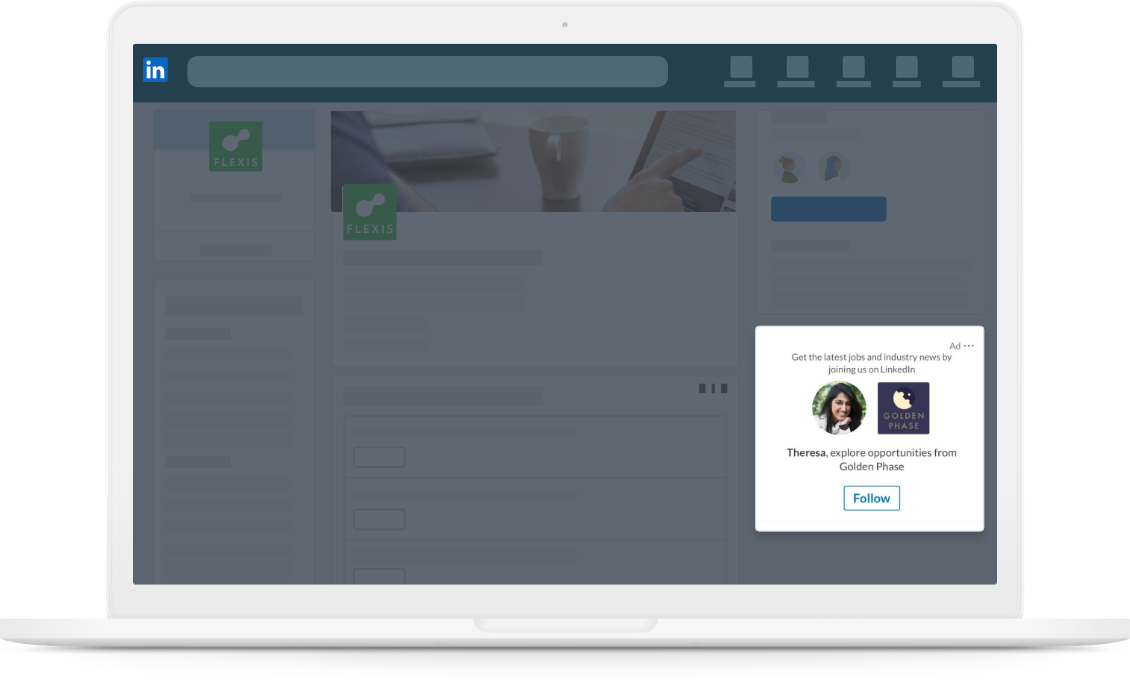
Open the Follower Ads specification page and look at its Golden Phase illustration. The ad sits in the right rail beside a Page view. It shows a member profile photo next to the company logo, a description about jobs and industry news, a headline addressing Theresa and mentioning opportunities at Golden Phase, and a Follow button.
This is LinkedIn’s product illustration, not evidence of an advertiser’s results. The lesson is in the arrangement: the logo identifies the Page, the words explain what following provides, and the button performs the follow action. Borrow that relationship between promise and action. A B2B software company does not need to copy the recruiting message.
Fictional B2B adaptation: operational advice
Suppose QuarryOps is a fictional software company serving plant operations teams. Its Page publishes a monthly maintenance checklist and short explanations of maintenance handoffs. Those are the approved facts for this example; no customer results are claimed.
| Field | Proposed custom copy or choice |
|---|---|
| Company name | QuarryOps |
| Headline | Maintenance ideas for operations teams |
| Description | Follow for monthly maintenance checklists and handoff tips. |
| Non-follower action | Follow |
| Existing-follower CTA to inspect | Visit company |
| Page content check | The promised checklists and handoff posts are present and easy to find. |
The headline names the subject rather than asking the reader to admire the brand. The description gives a continuing reason to follow. For an existing follower, the same message explains why a return visit could be worthwhile.
If QuarryOps instead wants to show a complete checklist before asking for a follow, an engagement Sponsored Content post can carry that material in the feed. That changes the creative task: prepare the actual checklist post and evaluate its follow clicks alongside its other interactions.
Fictional adaptation: a specialist hiring audience
Suppose Harbor Robotics is a fictional engineering employer with published robotics vacancies and recurring engineer interviews on its Page. A custom headline could be Explore robotics careers at Harbor. A description could be See open roles and meet the engineers behind our robots.
Use Follow for the non-follower state. Inspect an existing-follower option such as Visit careers only if the Page actually offers the relevant destination. If those roles or interviews do not exist, the copy is not ready. Replace the unsupported promise with something the Page can deliver.
These are draft adaptations, not screenshots, native approvals, or tested campaigns. Carry the approved facts and the two intended states into the creative handoff.
Use personalization without breaking the sentence
LinkedIn’s Dynamic Ads macro documentation lists %FIRSTNAME%, %LASTNAME%, and %COMPANYNAME% for Follower Ads. The headline and description support these macros. Use the supported native controls and inspect the resulting preview.
There is an important distinction in that documentation: %COMPANYNAME% uses the company name entered in the ad’s Company name box. Do not assume it inserts the viewer’s employer.
Members can opt out of ad personalization. LinkedIn documents LinkedIn Member as the non-personalized replacement for first-name and last-name macros, and your company for the company-name macro. Test the sentence with that fallback as well as with a personalized value.
For example, %FIRSTNAME%, explore maintenance ideas can become “LinkedIn Member, explore maintenance ideas.” That is understandable, but a plain headline may read more naturally for this particular offer. Personalization is an option, not a reason to insert a name into every sentence.
Long names and fallback text also change the rendered length. A short macro token in a working document does not establish that the expanded text fits. Check the native preview and any validation messages for the actual field.
Plan localization before choosing preset or custom text
The creation guide makes a clear distinction: preset headlines and descriptions are automatically translated based on the member’s profile language. Custom text is not automatically translated.
Choose between the two based on the message you need:
- Use a preset when its wording accurately describes the Page and automatic translation is important.
- Use custom copy when a specific content promise matters more than the available preset wording. Prepare the required language versions yourself.
- When combining preset and custom fields, check every field in each planned language. One translated field does not make the whole ad localized.
For QuarryOps, an English custom description promising maintenance checklists will remain custom English text. Targeting another country does not translate it. The owner needs to decide which language version to run, who reviews it, and whether the Page’s content supports that language promise.
Keep the chosen language, copy mode, and reviewer with each variant. Check the two follower states for each version, including personalization fallbacks. Do not mark a localized variant complete because its English source was approved.
Check the creative specifications
LinkedIn’s specification page publishes the following under Design Recommendations and Text Recommendations. Treat them as the platform’s preparation guidance, then check the current native validation and rendered preview.
| Item | Published guidance |
|---|---|
| Company logo | 100 × 100 pixels |
| Logo file type | JPG or PNG |
| Logo file size | 2 MB |
| Headline | 50 characters |
| Description | 70 characters |
| Company name | 25 characters |
A small square logo should remain recognizable at the size of the ad. A complex lockup with a long tagline may become illegible. Inspect the rendered logo beside the member image rather than judging only the full-size file.
Keep the distinction between source copy and rendered copy. Check custom text, selected presets, expanded macros, and the fallback state. A character count is one check; it does not prove that the line breaks, company identity, and action are clear.
For preparing a visual handoff before opening Campaign Manager, use the LinkedIn ad mockup guide. A mockup helps review the idea; Campaign Manager supplies the actual format preview and validation.
Set up the Follower Ad in Campaign Manager
Start with the correct Page and advertising account. LinkedIn’s creation guide requires super admin, content admin, or Sponsored Content poster access on the Page, plus creative manager or higher access on the ad account. The Create new ad(s) button can be unavailable when the required permissions are missing.
The current Follower Ads overview lists brand awareness and engagement as supported objectives and says the format is available only with manual bidding. Choose the available configuration that matches the campaign plan; there is no universal bid amount in this guide.
- Create an ad set with a supported objective, or open the existing follower ad set you intend to edit. Verify the account, Page, audience, budget, schedule, and bidding settings.
- On Ads in this ad set, select Create new ad(s) and give the ad a name that identifies the audience and language version.
- Choose a preset headline or enter a custom headline. Record which mode you used so localization expectations stay clear.
- Confirm the company name and logo. Replace either if the wrong Page identity is being represented.
- Choose a preset description or enter custom copy. Check that its promise appears in the Page’s content.
- Select the CTA for people who already follow the Page. Inspect its destination and make sure the copy still fits.
- Use the dynamic preview to inspect followers and non-followers. Check personalization, fallback wording, the logo, and the language version.
- Save the ad, then review the saved settings against the brief before launching under the account owner’s approval.
Saving an ad is not proof that it is serving. LinkedIn reviews ads before approved delivery under the ad set’s settings. Record saved, submitted, approved, and delivering as separate states when checking the launch.
The official guide also says an ad cannot be deleted after it has been added to an ad set. Confirm the intended ad set before saving. Do not use deletion of an existing setup as a routine way to repair a draft.
Measure ad follows and Page growth separately
Start with the metric definition, not the largest number in the dashboard.
LinkedIn’s engagement-metrics documentation defines Page follows as additional clicks when members follow the organization’s Page through the Follow button on Sponsored Content or a Follower Ad. Member follows refers to following a sponsored person’s account. Those are different destinations.
A click to the LinkedIn Page is also different from a follow. Someone can visit the Page without following, and total engagement includes several kinds of action. Use the Page follows field when that is the action you are evaluating.
Keep three records together:
| Record | What it answers | What it cannot prove alone |
|---|---|---|
| Campaign Manager Page follows, spend, and dates | What follow-click activity the selected ads reported and the spend associated with that scope | Net Page growth, retained followers, or qualified pipeline |
| Page follower totals at the start and end of the period | How the running follower total changed | Which ads caused the change |
| Page follower demographics and sources, where available | Whether the audience composition and sources match the Page’s intended audience | That every new follower is a buyer or will engage with later posts |
Follower analytics separates changes over time from the current follower population. The headline total updates daily and does not change when you adjust the reporting dates. Follower demographics describe current followers; changing the date range does not turn them into demographics for that period’s newly acquired followers. Some counts are rounded, and inactive accounts, including restricted and hibernated accounts, are excluded from the total.
Use those demographics to assess the Page’s overall audience, without treating them as the paid acquisition cohort. Keep Campaign Manager’s professional demographics separate too: an ad viewer’s job-title breakdown is not automatically the breakdown of the people who followed.
For a cost calculation, use spend and Page follows from the same ad scope, currency, date range, and reporting basis:
Cost per reported Page follow = ad spend ÷ reported Page follows.
Label the metric that way. Do not replace its denominator with all ad clicks, total engagement, or the Page’s net follower change. If Page follows is missing, the cost is Unknown. If the reported count is zero, the ratio is undefined; report the spend and zero follows separately.
A fictional reporting example
Suppose a completed report for one ad set shows $600 spend and 120 Page follows. The cost per reported Page follow is $5. Separately, the Page’s running total moves from 2,000 to 2,090, a net increase of 90.
The two observations do not conflict. One is reported ad follow-click activity; the other is a change in the Page’s total across all sources and losses. The difference does not prove that exactly 30 of the ad-acquired followers unfollowed. That conclusion would require evidence connecting those people and events.
Nor does $600 divided by 90 establish the ad set’s cost per acquired follower. It mixes an ad-spend numerator with a Page-wide net-change denominator. Keep the $5 campaign ratio and the 90 net-growth observation separate.
This example supplies arithmetic, not a benchmark. A low cost per follow can still be a poor business result if the people are outside the intended audience or the Page does not retain their interest.
Decide what to change after the first report
If there are impressions but few reported follows, review the promise, audience, and Page content together. A small logo change cannot repair a Page that has nothing relevant to publish.
If clicks rise while follows stay flat, inspect the click categories. Existing-follower CTA clicks and Page visits may be contributing to activity that does not add a follower. Check the actual ad-state and reporting evidence before attributing the pattern to a particular cause.
If follower cost falls after expanding geography, compare the follower sources and audience fit before calling the new targeting better. If the content promise changes, keep that change separate from a simultaneous audience and bidding change so the result remains interpretable.
Use the LinkedIn Ads reporting guide to carry the definitions and periods into a recurring report. The next decision should name what changed, which outcome moved, and what is still unknown.
Prepare the creative and measurement handoff
Download the blank follower-ad brief, then open the completed fictional example. Fill in the Page, content promise, creative, two preview checks, and reporting scope. Unknown fields become the operator’s next checks. The completed example deliberately leaves account checks and spend approval open; writing the copy does not establish either.
Before the owner reviews the campaign, bring together:
- The Page, intended audience, and specific reason to follow.
- The chosen route: right-rail Follower Ad or engagement Sponsored Content.
- The approved headline, description, company name, and logo.
- The non-follower Follow state and the existing-follower CTA and destination.
- Preset or custom status for each text field, language versions, and personalization fallbacks.
- Native permission, objective, bidding, preview, and validation checks.
- The reporting scope, Page follows metric, separate Page-growth record, and review owner.
A complete handoff explains both what the viewer will see and how the team will judge the outcome. It should not turn an unverified preview into launch approval or a follower count into revenue.
Paste the completed brief into your AI tool with the standalone prompt below. It reviews the supplied copy, two states, localization, and reporting definitions. It cannot inspect your account or authorize spend.
Copy the follower-ad review prompt
Copy this prompt into your AI tool, then supply your completed follower brief and native preview evidence. The complete text is also available as a plain-text version.
Read or select the full prompt
For help connecting this campaign to your wider paid-media plan, see our LinkedIn ads agency service.
Sources and scope
Platform behavior and preparation guidance were checked on 30 October 2026 against LinkedIn’s Follower Ads overview, creation guide, specification page, Dynamic Ads macro guide, Sponsored Content Follow-button guidance, engagement metrics, and Page analytics documentation linked above.
Golden Phase is LinkedIn’s illustrative creative. QuarryOps, Harbor Robotics, and the reporting figures are fictional teaching examples. No campaign was launched or measured to produce this guide.