LinkedIn boosted posts: choose the right route before you spend
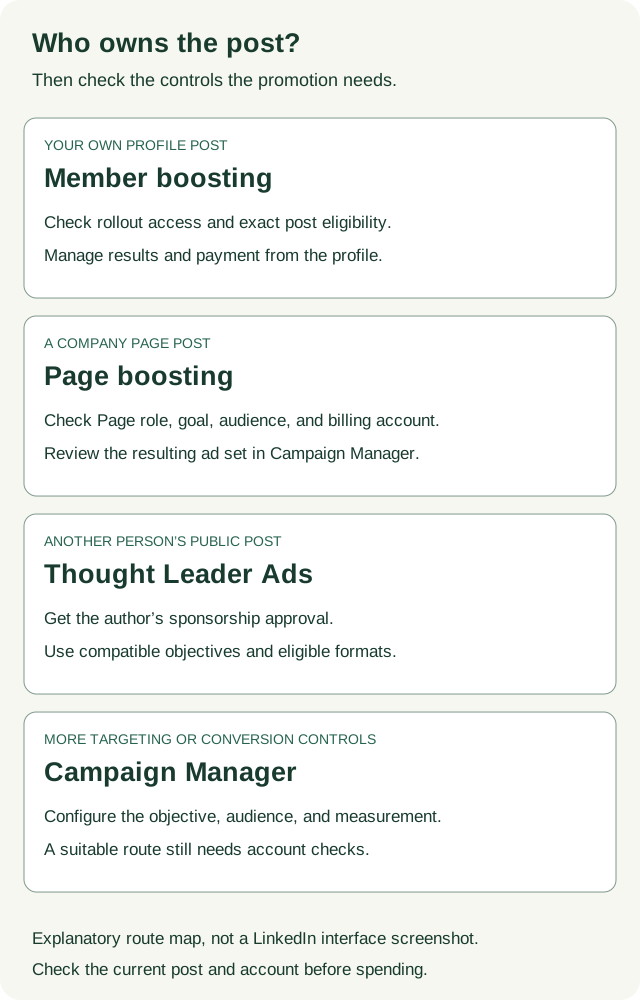
A LinkedIn boosted post is an existing post you pay to distribute as an ad. You can boost your own profile post when member boosting is available to you, boost a company Page post as a Page admin, or sponsor someone’s public post through Thought Leader Ads in Campaign Manager.
Start with who published the post and what you need the promotion to do. That choice determines which controls, permissions, and reporting you get. A founder promoting one post has a different setup from a company sponsoring an employee’s post or collecting leads through a form.
Choose member boosting, Page boosting, or Campaign Manager
| Your situation | Start here | Check before committing |
|---|---|---|
| You want to promote your own profile post for a short promotion | Member boosting from your profile | Your account has access, the exact post is eligible, and the available goal and audience fit the task |
| You want to promote a company Page post with a simple audience, budget, and schedule | Page boosting | You have super admin or content admin access, the goal works with that post, and the correct ad account will be billed |
| The company wants to sponsor an employee’s, executive’s, or creator’s public post | Thought Leader Ads in Campaign Manager | Page and ad-account permissions, eligible content, compatible objective, and the author’s sponsorship approval |
| You need Matched Audiences, website-conversion optimization, or more campaign controls | Campaign Manager | The objective, ad format, audience, destination, and measurement are configured for that task |
Thought Leader Ads are one way to advertise in Campaign Manager. They preserve the member as the author while the advertiser manages sponsorship. Member boosting is the person promoting their own post. Current Thought Leader Ads requirements support brand awareness and engagement, with video views for video posts. A member’s document post can qualify, but multi-image posts, polls, and reposts cannot. Do not choose this route assuming it provides a website-conversion objective or a Lead Gen Form on the member’s post. LinkedIn’s boosting overview distinguishes these routes.
If you already know you need member sponsorship, use our Thought Leader Ads guide for examples and the full sponsorship workflow. If you need to choose a creative format, use the LinkedIn ad types guide. This page helps you decide whether the Boost button fits the job and prepare a bounded test.
Open the boost decision worksheet. Record the author, post URL, business outcome, proposed route, account access, audience, total budget, dates, and measurement plan. Keep route selection separate from permission to launch. A sensible route can still have missing access or an untested destination.
Can you boost a personal LinkedIn post?
Yes, when member boosting is available to your account and the post is eligible. LinkedIn’s overview describes access through Premium Business Suite and a gradual release to members without a Premium Business subscription. Its member FAQ also says the feature is rolling out. Check the actual post in your Activity tab before assuming a plan upgrade will unlock it.
LinkedIn’s member FAQ lists text, single- or multi-image, article, video, and newsletter posts. It excludes job posts, events, documents, polls, group posts, and connections-only posts. There is a documentation mismatch: the broader overview lists events for member boosting, while the newer member FAQ excludes them. For a personal event post, check the exact post’s controls before planning a boost.
Page posts and Thought Leader Ads have different format rules. A document can qualify for Page boosting or a Thought Leader Ad without being eligible for self-serve member boosting. Likewise, the member FAQ’s multi-image support does not establish support for a multi-image Thought Leader Ad.
How to boost your own post
On desktop, follow LinkedIn’s member boosting instructions:
- Open Me → View Profile and find Activity → Posts → Show all posts.
- Find the post and select Boost in its upper-right corner.
- Choose the available goal, budget, and audience. Check location and language as well as the professional attributes offered in your account.
- Review the dates, total amount, payment details, and post before selecting the final Boost action.
- After submission, check review status and then delivery. A submitted boost has not necessarily started serving.
LinkedIn says ads are usually reviewed within 24 hours. That is an estimate, so leave time before a webinar or launch deadline and check the observed status.
Mobile member boosting is still in testing and gradual release. Where available, it uses prepaid ad credits. LinkedIn documents Apple in-app purchase on iOS and LinkedIn Secure Checkout in a mobile web view on Android. Check the amount and checkout details shown to you before buying credits. Profile boost credits cannot be used for Page boosting.
Member boosting does not give you access to an ad account in Campaign Manager. You manage the promotion, payment, and performance from the profile post. Use View analytics to inspect its organic and paid performance. Keep those populations separate when reporting the result.
Set the budget carefully. The member editing guide says you cannot change a boosted post’s budget. On desktop, open the post in Activity, select Manage, and use Delete ad to end that ad before starting a new boost with a different budget. This is the ad-management action; do not delete the organic post by mistake. On mobile, the documented Manage menu includes Stop boosting the post where the feature is available. The campaign ends when its budget is spent or its end date arrives, whichever comes first.
How to boost a company Page post
Page boosting is available from desktop and requires super admin or content admin access. Someone with Sponsored Content poster access can sponsor Page posts in Campaign Manager instead. Page permissions and ad-account permissions are separate checks.
LinkedIn’s Page setup instructions support text, single-image, event, video, document, article, and newsletter posts. Its format guide excludes polls and job ads. For an event, the post author must be an organizer. A Page article or newsletter must be authored by that Page.
The same setup instructions say previously boosted posts cannot be boosted again. If you want to continue an earlier promotion, inspect its existing ad set and available editing controls instead of planning a second boost of the same post.
Configure the Page boost
- Open the Page’s super or content admin view. Select Page posts in the left menu and find the eligible post.
- Select Boost and choose the goal that matches the action you want. Check the available goal for this specific post type.
- Review the audience. Suggested audience is the default and uses the post’s content. You can create an audience or use available saved templates. Record which method you chose and the actual selections.
- Set a start date, end date, and total budget. Confirm the currency and review date in your worksheet.
- If you choose Get more leads, complete the available form setup and privacy policy URL. Check the form, thank-you experience, and person responsible for reviewing submissions.
- Confirm the billing account, post preview, destination or form, and final settings. Then submit the boost when the responsible owner has approved that spend.
- Record the resulting ad set and check its review and delivery status in Campaign Manager.
The Page setup article explicitly says More leads is unavailable for document posts. A later note on the same page mentions document-form buttons, so do not infer that a document supports this goal from that note. Check the native combination before building your test around it. Campaign Manager is the next place to evaluate a different document-and-form setup; its own objective and format requirements still apply.
A Page boost creates an ad set in a Campaign Manager ad account. LinkedIn says its name includes “Boost Post,” the selected goal, and the boost date. Record the ad-set ID as well, so similar names do not confuse the review.
Check who will be billed
Page boosts are billed through an ad account, not through the Page itself. LinkedIn’s billing-account guide explains why an account selector may be absent:
- With no qualifying associated account, boosting can create one, giving you account manager and billing admin access.
- With one qualifying account, the boost is added to that account automatically.
- With multiple qualifying accounts, you can select among eligible accounts with billing information.
A missing selector does not prove the intended account is selected. Confirm the account identity, access, currency, and payment responsibility before submitting. An account on hold cannot be selected for a Page boost.
Edit a Page boost or end the test
To change the Page post itself, open Page posts → More → Edit post in the Page admin view. LinkedIn’s editing guide says a sponsored post can only be edited when the Page has at least 500 followers or 50 associated members. An edited boosted post needs ad review again, so check its status before assuming the revised version is serving.
To edit the ad set, open the billing account in Campaign Manager → Advertise, choose the correct campaign, then find the boost in Ad sets → Edit. The ad-set editing guide requires campaign manager access or higher and lists audience, placement, budget, and schedule controls. Objective and format cannot be changed after launch.
Keep the recorded end date as the test boundary. If you need to stop earlier, have the account’s campaign manager confirm and use the current pause or stop control for that exact boost, then verify the resulting status. The captured Page setup and editing guides do not specify a separate Page-side stop sequence, so do not apply the personal profile’s Delete ad instructions to a Page boost.
Choose the goal and audience for the result you need
A goal tells LinkedIn which action to optimize. It does not establish that the resulting person is a qualified buyer.
| Goal | What to evaluate | What needs separate evidence |
|---|---|---|
| Awareness | Paid impressions or reach, with the platform’s definitions and audience scope | Whether the right buyers noticed, remembered, or acted |
| Engagement | The reported clicks and social actions, with the exact metric definition | Whether participants match your intended audience |
| Video views | The platform’s view metric and viewing behavior | Whether viewers understood the offer or became leads |
| Website visits | Landing-page clicks and measured website activity | Form completion, qualification, and downstream outcomes |
| Leads, where offered for the post | Submitted forms and the cost of those submissions | Whether the submissions meet your qualification rule |
LinkedIn’s Page objective guide maps these goals to campaign objectives. Its website-visit description requires a URL in the post. Avoid choosing engagement and then judging the test solely by qualified demo requests: the optimization and the success criterion would be asking for different things.
For a B2B audience, begin with the people the post was written for. “US operations leaders at manufacturing companies” is a clearer starting point than “everyone who might like this.” In the Page boost audience controls, record location, profile language, and each available professional attribute. Multiple values within one facet generally broaden eligibility; adding another required facet can narrow it. Manager or Director is different from seniority and industry.
LinkedIn’s Page targeting documentation lists a 300-person minimum to launch an ad set and a 300,000-person recommendation for Sponsored Content. The first is a documented minimum; the second is a platform recommendation, not a pass/fail rule for your audience. Neither proves that the reachable people are qualified buyers. Check the current forecast rather than importing a reach estimate from a different route or account.
Review audience expansion and LinkedIn Audience Network settings when offered. Expansion can include people similar to the selected audience; Audience Network can deliver beyond LinkedIn on partner sites and apps. Record those choices when comparing results. If you require Matched Audiences or targeting controls absent from the boost screen, use Campaign Manager. The Page workflow can carry your selections into Campaign Manager, but LinkedIn says you cannot return to that boost screen afterward.
Set a total budget and a review rule
Choose the amount you are prepared to spend learning whether this post and audience produce the intended response. Write the amount, currency, start date, end date, and owner before launching. Keep any platform forecast in a separate field from observed results.
Page boosts use a lifetime budget, maximum-delivery bidding, and a start/end schedule by default, according to LinkedIn’s budget guide. Daily spending can vary. A total budget divided by the number of days is a planning average, not a daily cap.
Do not apply a personal-profile minimum from a UK example to a US company Page or assume a quoted dollar minimum applies to every route. Read the current minimum and total charge in the setup you will actually use. Third-party guides publish different amounts, dates, and route assumptions.
Before the test, define two reviews. The first checks delivery and the destination: correct account, intended audience, working link or form, and expected spend. The second judges results after your chosen observation period and any allowed follow-up time. A broken link needs immediate repair; a small number of qualified leads may need more evidence before you can judge economics.
Set a stopping condition the owner can act on. For example: stop at the approved end date or total budget; hold additional spend if the form stops working, delivery falls outside the intended scope, or qualification data is still missing. Do not extend a test automatically because impressions look encouraging.
Worked decisions: when boosting fits and when to change routes
These examples are fictional planning and reporting exercises. Their budgets and results are not benchmarks or Maestro client outcomes.
A founder wants more people to read one post
A founder has a public single-image post explaining a procurement problem. The goal is relevant engagement with that explanation. Member boosting is available on the exact post, and the founder can define an audience that matches it.
A member boost is a reasonable route for this task. Suppose the owner proposes a USD 150 total budget over five days. That is a fictional test limit, subject to the account’s current minimum and controls. Record the exact audience and decide how the founder will review the relevance of comments and profile activity. Reactions alone cannot establish qualified pipeline.
If the company instead needs to pay from its advertising account, use campaign reporting, and sponsor the founder’s identity, evaluate a Thought Leader Ad. The founder must approve sponsorship. The company’s desire to run the post does not establish that approval.
A company wants a report download from its Page
A marketer has a Page post linking to a finished report and wants website visits. The landing page works, tracking distinguishes this promotion, and someone owns the follow-up. A Page boost can fit if its audience controls meet the plan.
Suppose a completed fictional test records USD 300 spend, 15,000 paid impressions, 120 landing-page clicks, and 12 attributed form submissions. Sales has reviewed all 12 and classified three as qualified under a written rule. The paid period and attribution window are recorded, and the counts are deduplicated within their own stages.
The calculations are USD 20 per thousand paid impressions, USD 2.50 per landing-page click, USD 25 per submitted form, and USD 100 per qualified lead. The click-through rate using landing-page clicks is 0.8%. State that definition rather than comparing it with a platform rate based on all clicks.
The review can say: “This recorded test produced 12 attributed submissions, of which three met our qualification rule.” It cannot say all 120 clicks were leads, or that the ads caused incremental revenue. Check the three leads’ later outcomes before proposing more spend.
Use the results CSV to record the periods, metric definitions, spend, submission count, qualification coverage, and source references. The completed example shows the calculation and its limits.
A team needs an account list and website conversions
A marketer wants to reach a defined account list, optimize for completed demo requests, and compare two ads. The simple boost screen does not supply the required targeting and conversion controls.
Use Campaign Manager to configure the audience and objective. Confirm that the conversion event represents the intended completion and that the destination works. The existing post may still be reusable if it meets that campaign’s requirements. Choosing Campaign Manager does not mean every post, objective, and format combination is eligible.
The boost has clicks, but qualification is missing
A second team has the same USD 300 spend and 12 submitted forms, but only four submissions have been reviewed. Two of those four are qualified; eight remain unreviewed.
Report two confirmed qualified leads with eight awaiting review. Full-cohort qualified-lead cost is unresolved. USD 300 divided by two is USD 150 per currently confirmed qualified lead, not the settled cost for all 12 submissions. Do not enter zero qualified leads for the unreviewed rows, and do not extrapolate the reviewed qualification rate to the rest.
Assign the review owner and deadline before deciding whether the boost should continue. If form attribution is also unverified, even the “12 from the boost” statement remains unresolved. The platform’s engagement total cannot fill that gap.
Why is the Boost button missing or unavailable?
Check the route first. A missing button on a personal profile can reflect rollout access or post eligibility. Page boosting requires the right Page role and desktop access. A public document post may fit Page boosting or Thought Leader Ads while remaining unavailable for member boosting.
For a Page post, confirm the format, author conditions, and whether it was already boosted. For the account, check access and billing status. For Thought Leader Ads, confirm the member’s public post and sponsorship permission; Campaign Manager also requires the relevant ad-account role.
If a control or objective is missing, save the post URL, route, observation date, and exact message. Ask the Page or ad-account administrator to check that combination. Avoid copying settings from another promotion type just because both screens say “Boost.”
Review the result before you boost again
Use the same post, route, account, audience, dates, and metric definitions when reconciling spend and results. Keep organic performance separate from paid performance. If you change the audience or post during the run, record when it changed so a later reviewer can understand the comparison.
A paid reach total reports how many members the promotion reached under that metric’s definition. For a lead-generation decision, also inspect submissions, qualification, and the follow-up period. A comparison with organic performance can describe differences, but different audiences and distribution mean it is not a clean incrementality test.
Open the boost review prompt, paste your redacted worksheet and result evidence, and ask for three separate judgments: route fit, launch readiness, and what the results support. Leave missing values Unknown. A forecast is not delivery evidence, and a complete planning record is not permission to spend beyond the owner’s approval.
Copy the boost-review prompt
Copy this prompt into your AI tool, then supply your post, goal, audience, and available results. The complete text is also available as a TXT download.
Read or select the full prompt
For a recurring report, carry the recorded scope and unresolved checks into the LinkedIn ads reporting guide. If you want help deciding where paid distribution fits in your wider demand-generation work, book a Demand Gen Roast.
Sources and current account checks
Official public documentation was checked on October 29, 2026. The main references are LinkedIn’s boosting overview, member FAQ, member setup, Page setup, Page targeting, Page budgets, and Thought Leader Ads requirements.
LinkedIn’s documents do not agree on every format and label. The route-specific differences above are preserved so you can check the current controls before committing. This guide does not verify your subscription, post eligibility, permissions, billing, or delivery.