1. Show the offer
The kit is visible while the creator introduces it. Let people see what they will get.
Need an idea for your next LinkedIn video ad? Start with these examples from Notion, monday.com, Adobe, Salesforce and Qualified.
You’ll see how they show a product, promote a free resource and turn a customer’s story into an ad. Watch the videos, choose an approach and use the script example or copyable prompts to plan what to record.
Inspect the frames, or jump to each moment in the video above.
The kit is visible while the creator introduces it. Let people see what they will get.
A pitch-improvement prompt gives the kit a concrete job. Show the part that solves your buyer’s problem.
The creator asks viewers to connect and comment. Your own closing instruction should match your actual delivery process.
Notion’s ad promotes a free fundraising kit. A creator walks through the kit on screen: a pitch document, an investor tracker, prompts and a data room. You can see what you’re being offered before you click.
Showing the actual resource gives people a reason to download it. They can judge what it contains before giving you their time or contact details.
The video shows a founder how they could organize a fundraise in Notion. That makes the offer easy to recognize for someone doing that work.
Try this with your next lead magnet: record your screen and show two or three parts of the resource.
Prepare a completed version before recording. Open the strongest part first, show one action and finish on the download page. Avoid scrolling through every tab: the viewer needs to understand what they can do with the resource.
You could open with: “Here’s the spreadsheet we use to plan a month of LinkedIn ads. I’ll show you how to fill it in.” Use a resource and process you actually have.
Copy this prompt into your agent and fill in your business details. It includes the ad summary, an example and the script instructions.
Download this prompt as a text file
Create an original LinkedIn video ad using the structure explained below. This prompt contains the reference context; you do not need access to the article it came from.

REFERENCE
Notion promotes a free fundraising kit. A creator shows a pitch document, investor tracker, prompts and data room on screen. The resource contents make the offer concrete before the click.
Original ad: https://www.linkedin.com/ad-library/detail/1615078796
This is an editorial summary of visible scenes and saved post copy, not a full transcript. Do not invent dialogue from the reference or claim to have watched it. Use the structure, not the advertiser’s wording or brand assets.

MY BUSINESS
Product or service: [describe what it does]
Buyer and the task or problem they care about: [fill in]
Offer and next step: [what they get, and destination]
Available material: [paste facts, resource contents, transcript or demo steps; attach footage/screens if supported]
Claims or quotes approved for use: [paste, or write none]
Production limits: [who can record, available footage, desired length]

INPUTS THIS FORMAT NEEDS
The actual resource or its contents; one completed example; who needs it; what they are trying to do; how they get it.
Use the material I supplied. If an essential fact is missing, ask up to three focused questions before writing the finished script. If you cannot open an attachment or link, say which excerpt or screen description you need. Do not fill gaps with invented product behavior or results.

AD STRUCTURE
1. Name the task the resource helps with while showing a completed example.
2. Open two specific parts and explain what each helps the buyer do.
3. Demonstrate one action, such as filling in a row.
4. Tell the viewer how to get the resource.

WORKED EXAMPLE
For an ad-planning spreadsheet: show a filled-in campaign row, point to the buyer and offer columns, fill in a second row, then invite the viewer to get the template. This is a hypothetical adaptation, not a description of the Notion ad.

YOUR TASK
Write a 30–45 second resource walkthrough. Every benefit must connect to a visible part of the supplied resource. If the resource is unavailable, request its contents before describing it.
First state the single idea the viewer should understand. Then give me:
- Two specific opening lines, with the first shot for each. Recommend one and explain why it fits this buyer.
- One complete script table: approximate time, exact spoken words, exact shot or screen action, on-screen text. Label assets AVAILABLE, TO RECORD or TO CREATE. For available footage, use verified action timecodes if supplied. Without them, do not assume where to trim: preserve the described action and mark the timing TO VERIFY. Separate a timing estimate from a media-checked edit. Keep captions separate from extra on-screen headings.
- The final call to action, matched to my offer and destination.
- A recording checklist naming the screens, files, people and props needed, plus any facts I must confirm.

Write as if explaining the product to a colleague: ordinary words, specific actions, no hype. Estimate spoken duration from the word count and allow time for screen actions. If audio playback is available, check the pacing aloud; otherwise label timing as an estimate. Shorten any shot that repeats the same point. Check that every factual claim comes from my material and every shot is possible with the listed assets. Do not use the reference brand’s results as evidence for my business.
View the original monday.com ad
Inspect the frames, or jump to each moment in the video above.
The creator admits her own content system was a mess. Start with the problem your buyer recognizes.
The workspace shows categories for content ideas. Explain the particular action, rather than listing every feature.
The on-screen caption describes messaging the team. Explain who can act next and what they need.
The post opens with an admission: “I teach content systems to my clients, yet my own was an absolute mess.”
Her notes already captured her ideas. The problem was that her team could not act on them without asking her to explain.
That gives the product a specific job: making those ideas understandable and ready for other people to use.
The video moves between the creator, everyday footage and her monday.com workspace. You see ideas tagged by topic, stage and other categories. The creator also describes notifying her team in Slack. Those details explain what changes in the process, beyond simply having a tidier list.
The idea to borrow: show how someone uses your product to deal with a problem your buyer already has. Let the person explain what was difficult, then show the part of the product that helps.
For a customer interview, ask:
Choose one answer and record the process it describes. If ideas used to get lost in separate documents, show where the customer collects and assigns them now.
Keep the customer’s actual words. Write any connecting explanation as separate narration.
Copy this prompt into your agent and fill in your business details. It includes the ad summary, an example and the script instructions.
Download this prompt as a text file
Create an original LinkedIn video ad using the structure explained below. This prompt contains the reference context; you do not need access to the article it came from.

REFERENCE
The monday.com post opens: “I teach content systems to my clients, yet my own was an absolute mess.” The video combines a creator, everyday footage and a workspace where content ideas are organized and tagged. The pattern is a recognizable work problem followed by the process used to handle it.
Original ad: https://www.linkedin.com/ad-library/detail/1550211314
This is an editorial summary of visible scenes and saved post copy, not a full transcript. Do not invent dialogue from the reference or claim to have watched it. Use the structure, not the advertiser’s wording or brand assets.

MY BUSINESS
Product or service: [describe what it does]
Buyer and the task or problem they care about: [fill in]
Offer and next step: [what they get, and destination]
Available material: [paste facts, resource contents, transcript or demo steps; attach footage/screens if supported]
Claims or quotes approved for use: [paste, or write none]
Production limits: [who can record, available footage, desired length]

INPUTS THIS FORMAT NEEDS
An interview excerpt or factual account of the old process; what the person does now; the product steps you can record; permission to use their words and identity.
Use the material I supplied. If an essential fact is missing, ask up to three focused questions before writing the finished script. If you cannot open an attachment or link, say which excerpt or screen description you need. Do not fill gaps with invented product behavior or results.

AD STRUCTURE
1. Start with the person describing one concrete difficulty.
2. Explain what happened during an ordinary workday because of it.
3. Show the change in process, including one specific product action.
4. Close with what the viewer can try or see next.

WORKED EXAMPLE
A hypothetical content manager used to collect ideas in separate documents. Now they add ideas to one board and assign each a publication date. Show those actions. Do not claim this saved time unless the supplied interview supports it.

YOUR TASK
Write a 30–45 second story. If an interview is supplied, label verbatim excerpts and distinguish them from new presenter narration. Without an interview, write a process demonstration in the company’s voice; never manufacture a customer or first-person experience.
First state the single idea the viewer should understand. Then give me:
- Two specific opening lines, with the first shot for each. Recommend one and explain why it fits this buyer.
- One complete script table: approximate time, exact spoken words, exact shot or screen action, on-screen text. Label assets AVAILABLE, TO RECORD or TO CREATE. For available footage, use verified action timecodes if supplied. Without them, do not assume where to trim: preserve the described action and mark the timing TO VERIFY. Separate a timing estimate from a media-checked edit. Keep captions separate from extra on-screen headings.
- The final call to action, matched to my offer and destination.
- A recording checklist naming the screens, files, people and props needed, plus any facts I must confirm.

Write as if explaining the product to a colleague: ordinary words, specific actions, no hype. Estimate spoken duration from the word count and allow time for screen actions. If audio playback is available, check the pacing aloud; otherwise label timing as an estimate. Shorten any shot that repeats the same point. Check that every factual claim comes from my material and every shot is possible with the listed assets. Do not use the reference brand’s results as evidence for my business.
View the original Salesforce ad
Inspect the frames, or jump to each moment in the video above.
The Slackbot interface is the focus. Remove anything that competes with the task.
A question is entered on screen. Give viewers enough time and screen space to read your version.
The closing brand screen ends a short teaser. A full demonstration would also need to show the answer.
This short ad shows a question being typed into Slackbot about getting time with customers at an upcoming conference. It ends with “Ask Slackbot.”
The accompanying post explains the situation: an account executive is heading to Dreamforce and has meetings, customers and prospects competing for their time.
That gives an abstract AI feature a familiar job. You can understand the request without learning how the technology works. The clip is a teaser rather than a full demonstration of the answer.
Try this for your software: choose one question a customer would ask or one task they need to complete. Record that interaction. Make the text large enough to read on a phone, and explain any step that would confuse someone seeing the product for the first time.
For a reporting tool, that might be: “Which campaigns brought us booked meetings last month?” Show the answer if your product can provide it. A specific question is easier to picture than “Make better decisions with AI.”
Choose the format before you edit:
If your ad stops after typing a question, describe it as a teaser.
Copy this prompt into your agent and fill in your business details. It includes the ad summary, an example and the script instructions.
Download this prompt as a text file
Create an original LinkedIn video ad using the structure explained below. This prompt contains the reference context; you do not need access to the article it came from.

REFERENCE
Salesforce’s roughly 10-second Slackbot ad shows a question being typed about getting time with customers at a conference and ends with “Ask Slackbot.” Its post supplies the account-executive/Dreamforce context. It is a teaser: the selected clip does not show a full answer.
Original ad: https://www.linkedin.com/ad-library/detail/1598186416
This is an editorial summary of visible scenes and saved post copy, not a full transcript. Do not invent dialogue from the reference or claim to have watched it. Use the structure, not the advertiser’s wording or brand assets.

MY BUSINESS
Product or service: [describe what it does]
Buyer and the task or problem they care about: [fill in]
Offer and next step: [what they get, and destination]
Available material: [paste facts, resource contents, transcript or demo steps; attach footage/screens if supported]
Claims or quotes approved for use: [paste, or write none]
Production limits: [who can record, available footage, desired length]

INPUTS THIS FORMAT NEEDS
One buyer task; the exact input or action the product accepts; whether an accurate output can be shown; a screen capture or verified product description; the next step.
Use the material I supplied. If an essential fact is missing, ask up to three focused questions before writing the finished script. If you cannot open an attachment or link, say which excerpt or screen description you need. Do not fill gaps with invented product behavior or results.

AD STRUCTURE
1. Put the buyer’s question or task on screen immediately.
2. Show the input or action at a readable size.
3. If a verified answer is available, show the relevant part; otherwise make this a teaser and invite the viewer to the full demo.
4. End with one next step.

WORKED EXAMPLE
For a reporting product that supports it: type “Which campaigns brought in booked meetings last month?” Show the matching report. Use supplied demo data and do not invent campaign names or counts.

YOUR TASK
Write a 10–20 second concept. Choose explicitly between a teaser and an answer demonstration based on available material. Do not squeeze a full product tour into the time. Allow enough time to read the question; suggest extending the duration if needed.
First state the single idea the viewer should understand. Then give me:
- Two specific opening lines, with the first shot for each. Recommend one and explain why it fits this buyer.
- One complete script table: approximate time, exact spoken words, exact shot or screen action, on-screen text. Label assets AVAILABLE, TO RECORD or TO CREATE. For available footage, use verified action timecodes if supplied. Without them, do not assume where to trim: preserve the described action and mark the timing TO VERIFY. Separate a timing estimate from a media-checked edit. Keep captions separate from extra on-screen headings.
- The final call to action, matched to my offer and destination.
- A recording checklist naming the screens, files, people and props needed, plus any facts I must confirm.

Write as if explaining the product to a colleague: ordinary words, specific actions, no hype. Estimate spoken duration from the word count and allow time for screen actions. If audio playback is available, check the pacing aloud; otherwise label timing as an estimate. Shorten any shot that repeats the same point. Check that every factual claim comes from my material and every shot is possible with the listed assets. Do not use the reference brand’s results as evidence for my business.
Inspect the frames, or jump to each moment in the video above.
The stadium establishes the NFL context. Start with the work or situation your customer recognizes.
Fan content and product graphics connect the software to a concrete use. Show where your product fits.
“It starts with Adobe” closes the story. Keep the ending short and make it clear whose product the viewer has seen.
Adobe’s NFL ad is full of football, fans and the content they see. Product graphics appear alongside those scenes, connecting Adobe’s software to the work of creating and delivering that content.
The NFL makes this example instantly recognizable. But you can borrow the structure without having a famous customer or a sports-production budget.
Start with the work your customer is trying to do. Show the people, the setting and the finished result. Then explain where your product fits.
For an events platform, that could mean showing the event, the registration process and the organizer handling a last-minute change. For a sales tool, it could mean showing a rep preparing for a meeting. The customer’s task gives the product demonstration a reason to exist.
To plan your version, list three shots. For an events platform, that could be:
Ask the customer which footage you can use. If you only have software recordings, start with a product demonstration.
Copy this prompt into your agent and fill in your business details. It includes the ad summary, an example and the script instructions.
Download this prompt as a text file
Create an original LinkedIn video ad using the structure explained below. This prompt contains the reference context; you do not need access to the article it came from.

REFERENCE
Adobe’s NFL video combines football, fans, content and product graphics. It connects software with the customer’s work and the content fans see. The approach depends on showing a real setting and work, not simply placing a customer logo beside a claim.
Original ad: https://www.linkedin.com/ad-library/detail/1616267816
This is an editorial summary of visible scenes and saved post copy, not a full transcript. Do not invent dialogue from the reference or claim to have watched it. Use the structure, not the advertiser’s wording or brand assets.

MY BUSINESS
Product or service: [describe what it does]
Buyer and the task or problem they care about: [fill in]
Offer and next step: [what they get, and destination]
Available material: [paste facts, resource contents, transcript or demo steps; attach footage/screens if supported]
Claims or quotes approved for use: [paste, or write none]
Production limits: [who can record, available footage, desired length]

INPUTS THIS FORMAT NEEDS
A customer project you can describe; their task; your product’s specific role; approved footage or images; any approved result and its source.
Use the material I supplied. If an essential fact is missing, ask up to three focused questions before writing the finished script. If you cannot open an attachment or link, say which excerpt or screen description you need. Do not fill gaps with invented product behavior or results.

AD STRUCTURE
1. Show the customer’s work or finished project so the viewer understands the setting.
2. Explain one task involved in making it happen.
3. Show exactly where your product helps with that task.
4. Return to the finished work and offer a relevant next step.

WORKED EXAMPLE
For an events platform: show an event, an organizer checking registrations and the registration workflow. Only describe this as a customer story if you have a real customer and permission. Otherwise label it as a demonstration.

YOUR TASK
Write a 30–45 second customer-project story. Separate footage already available from shots to record. Keep production possible with the supplied assets. Do not imply a famous customer, endorsement or measurable result that is absent from the inputs.
First state the single idea the viewer should understand. Then give me:
- Two specific opening lines, with the first shot for each. Recommend one and explain why it fits this buyer.
- One complete script table: approximate time, exact spoken words, exact shot or screen action, on-screen text. Label assets AVAILABLE, TO RECORD or TO CREATE. For available footage, use verified action timecodes if supplied. Without them, do not assume where to trim: preserve the described action and mark the timing TO VERIFY. Separate a timing estimate from a media-checked edit. Keep captions separate from extra on-screen headings.
- The final call to action, matched to my offer and destination.
- A recording checklist naming the screens, files, people and props needed, plus any facts I must confirm.

Write as if explaining the product to a colleague: ordinary words, specific actions, no hype. Estimate spoken duration from the word count and allow time for screen actions. If audio playback is available, check the pacing aloud; otherwise label timing as an estimate. Shorten any shot that repeats the same point. Check that every factual claim comes from my material and every shot is possible with the listed assets. Do not use the reference brand’s results as evidence for my business.
View the original Qualified ad
Inspect the frames, or jump to each moment in the video above.
The title introduces Piper as an AI SDR. Name the product and its job before showing the interaction.
The chat asks “Ready to book a meeting?” and offers a reply. Show the question and choice before moving to the scheduling screen.
Qualified branding appears at the end. Match your own closing instruction to the destination you offer.
Qualified introduces Piper, its AI SDR, with a presenter, chat screens and a meeting-booking screen. The viewer sees examples of the interactions the product is being advertised to handle.
That matters when you’re selling something people have heard a lot of promises about. “Generate more pipeline with AI” leaves plenty of questions. Showing a conversation and a booking step makes the offer easier to understand.
The ad uses bright purple backgrounds and large type, but the most transferable idea is the demonstration. You can do a simpler version with a screen recording and a short explanation.
Try this: pick the feature your sales team spends the most time explaining. Show it handling one realistic situation.
For a booking tool, record:
If a person must approve the booking, include that step. The viewer should understand what the software does and what their team still has to do.
Copy this prompt into your agent and fill in your business details. It includes the ad summary, an example and the script instructions.
Download this prompt as a text file
Create an original LinkedIn video ad using the structure explained below. This prompt contains the reference context; you do not need access to the article it came from.

REFERENCE
Qualified’s Piper ad uses a presenter, chat screens and a meeting-booking screen to explain an AI SDR. The transferable idea is showing a concrete interaction so the viewer understands the product. This summary does not establish its campaign performance or validate any performance claims in the ad.
Original ad: https://www.linkedin.com/ad-library/detail/1615168336
This is an editorial summary of visible scenes and saved post copy, not a full transcript. Do not invent dialogue from the reference or claim to have watched it. Use the structure, not the advertiser’s wording or brand assets.

MY BUSINESS
Product or service: [describe what it does]
Buyer and the task or problem they care about: [fill in]
Offer and next step: [what they get, and destination]
Available material: [paste facts, resource contents, transcript or demo steps; attach footage/screens if supported]
Claims or quotes approved for use: [paste, or write none]
Production limits: [who can record, available footage, desired length]

INPUTS THIS FORMAT NEEDS
The product feature; the buyer’s situation; a real or approved demo interaction; the steps the product actually performs; any human handoff; available screen recordings.
Use the material I supplied. If an essential fact is missing, ask up to three focused questions before writing the finished script. If you cannot open an attachment or link, say which excerpt or screen description you need. Do not fill gaps with invented product behavior or results.

AD STRUCTURE
1. Name the situation the buyer recognizes.
2. Show how the interaction starts.
3. Walk through the important product actions in order.
4. Show the actual end state and explain what the user does next.
5. Invite the viewer to see or try the relevant feature.

WORKED EXAMPLE
For a scheduling tool: show an inquiry, the available appointment times and the confirmed appointment. Use the real workflow. If a person has to approve the booking, show that step instead of implying the software does everything.

YOUR TASK
Write a 30–45 second demonstration. Identify the input, product action and output in the script. Keep the sequence intact; remove secondary features before removing the steps needed to understand it.
First state the single idea the viewer should understand. Then give me:
- Two specific opening lines, with the first shot for each. Recommend one and explain why it fits this buyer.
- One complete script table: approximate time, exact spoken words, exact shot or screen action, on-screen text. Label assets AVAILABLE, TO RECORD or TO CREATE. For available footage, use verified action timecodes if supplied. Without them, do not assume where to trim: preserve the described action and mark the timing TO VERIFY. Separate a timing estimate from a media-checked edit. Keep captions separate from extra on-screen headings.
- The final call to action, matched to my offer and destination.
- A recording checklist naming the screens, files, people and props needed, plus any facts I must confirm.

Write as if explaining the product to a colleague: ordinary words, specific actions, no hype. Estimate spoken duration from the word count and allow time for screen actions. If audio playback is available, check the pacing aloud; otherwise label timing as an estimate. Shorten any shot that repeats the same point. Check that every factual claim comes from my material and every shot is possible with the listed assets. Do not use the reference brand’s results as evidence for my business.
Choose the material you have. Your recommendation will include what to prepare and the matching example.
This matches production needs to your assets. It does not predict which ad will perform best.
Choose the example closest to what you already have. You can make a clear ad from a good resource, a customer conversation or a product recording.
| What you have | Start with | What to record |
|---|---|---|
| A template, guide or checklist | Notion’s resource walkthrough | Open it and show how someone would use it |
| A customer with a specific story | monday.com’s personal walkthrough | The problem in their words, followed by the product in use |
| A feature people struggle to understand | Salesforce’s focused example | One question or task, with readable screen footage |
| A customer project you can show | Adobe’s customer story | The work, the result and where your product helped |
| A product that needs a demonstration | Qualified’s product video | One realistic interaction from start to finish |
If you have several options, start with the one you can show today. A finished template can become a walkthrough immediately. A customer story needs an interview, footage and permission. Write down the missing material before choosing the more demanding production.
Here’s a sample script for a company offering a LinkedIn ad-planning spreadsheet. It’s a made-up example to show the structure; adapt it to a resource you can deliver.
This is an illustrative storyboard for the fictional spreadsheet offer. The layouts show what to record; they are not screenshots of a real product or a finished Canva template.
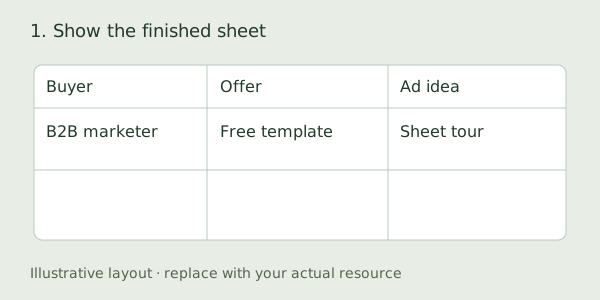
Say: “Planning next month’s LinkedIn ads? Here’s a template you can use.”
Record: Open a filled-in campaign row. Keep the buyer, offer and idea visible.
Download editable SVG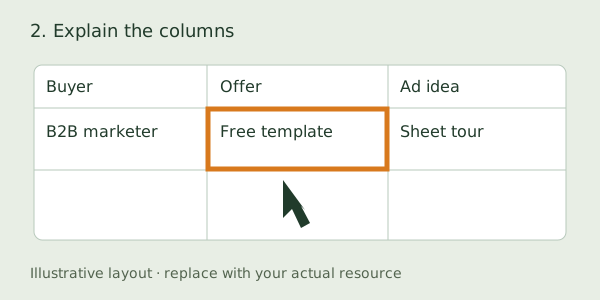
Say: “Put the buyer, the offer and the idea on one row, so your team knows what each ad is supposed to do.”
Record: Point to each column as you name it.
Download editable SVG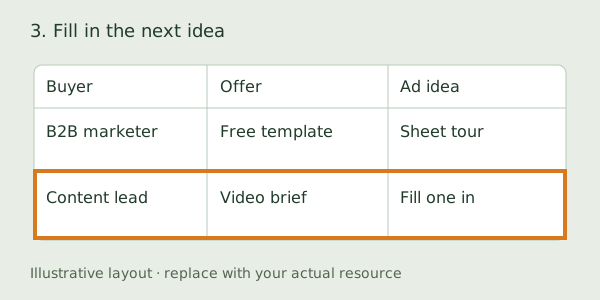
Say: “Then add the next idea. You can see what’s missing before anyone starts filming.”
Record: Add a second campaign row, then pause so it can be read.
Download editable SVG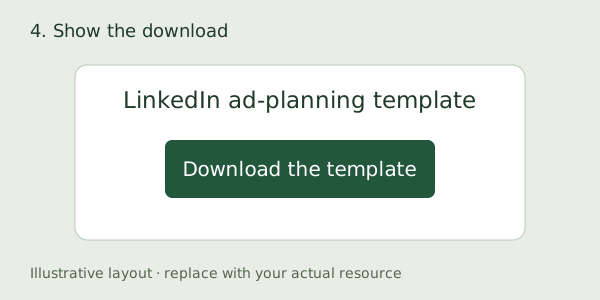
Say: “Get the template and use it to plan your next campaign.”
Record: Show your actual download page and where to get the file.
Download editable SVGTo record this script:
Before exporting, play the draft for someone unfamiliar with the resource. Ask them what it helps them do and where they would get it. If they cannot answer, revise the demonstration or the closing instruction.
The editable video brief includes this filled-in example and a blank version for your own ad.
Prefer to work with an agent? Open “Make your version” below an example and copy the prompt. It includes the ad summary and script instructions. Add your business details and the resource or product steps it should use.
If you're producing the ad yourself, this guide to creating software ads that convert covers the creative formula and campaign structure.
The examples above give you five different ways to explain an offer. Before recording, decide what someone should understand by the end. “Our software helps sales teams” is too broad to guide a video. “A rep can ask which customers are attending an event” tells you what to show.
Give the idea enough time to make sense. These examples use different lengths:
Their lengths show the range of approaches. We don’t have results showing which performed best.
For a first draft, try explaining one task in 30 seconds. That is a production starting point, not a platform rule. If the viewer needs another step to understand the demonstration, include it. If a sentence repeats what the screen already makes obvious, cut it.
To shorten the draft, remove your company introduction, repeated benefits and secondary features first. Keep the action that proves the point. Read the narration while playing the screen recording: if you have to rush to keep up, simplify the sentence or give the shot more time.
Open with the reason your buyer would watch. Notion has a resource to show. monday.com has a recognizable problem. Salesforce has a question someone might ask at work.
Here are three openings you could adapt. These are sample lines, not quotes from the ads:
| Your ad is about | A possible opening | What should appear on screen |
|---|---|---|
| A free template | “Planning next month’s LinkedIn ads? Start with this spreadsheet.” | The completed spreadsheet |
| A reporting problem | “Which campaigns actually brought in booked meetings?” | The question and the relevant report |
| A customer’s process | “Here’s how our team keeps track of content ideas.” | The person speaking, then their actual workspace |
Choose an opening that the next shot can answer. After “Which campaigns brought in booked meetings?”, show the relevant report. After “Start with this spreadsheet,” show the spreadsheet. If your next shot is a logo animation, move it later or remove it.
You can make a resource walkthrough or a product demonstration with a screen recording and a clear voiceover. Start there if you already have a template or a feature worth showing.
What you need depends on the approach:
Use a demo account so private customer details stay out of the recording.
Adobe’s example asks for different material: customer footage, a story you can tell and permission to use it. Choose that approach when you have those ingredients. You do not need to reproduce its production budget to show what a customer does with your product.
Yes. Find a passage that answers one question your buyer cares about. The passage needs to make sense to someone who has never watched the full video.
A tutorial about planning LinkedIn campaigns might contain a short explanation of choosing an offer. Start the ad there, show the worksheet being filled in, then tell the viewer where to get it.
Remove references such as “as I said earlier,” or record a new sentence that supplies the missing context.
With a customer interview, keep the customer’s meaning intact. Pair their description of a problem with footage of the process they are discussing. If their answer needs two minutes of background, choose a different passage rather than cutting it into a claim they did not make.
Choose a layout that lets people see the important part. A presenter can fit comfortably in a vertical frame. A wide software interface may need a closer crop or a different layout to stay readable. Preview the actual export on a phone before deciding.
If you use Canva:
Test the versions that suit your footage. Aimers recommends trying vertical video, while AJ Wilcox and Chandler Quintin discuss accounts where horizontal video did better on viewing metrics. Neither settles what will work for your campaign. LinkedIn supports both, as well as square video.
AJ Wilcox and Chandler Quintin discuss their comparison of vertical, square and horizontal LinkedIn videos. Watch for the distinction between viewing metrics and the business result you want.
Loads an embedded YouTube player when you choose to watch.
Watch on YouTube · Read the episode transcript
Apply it: make two layouts from the same footage and compare them against the same campaign goal. The guests’ reported account results are a reason to test, not a guarantee for your ads.
Mute the exported video and watch it on your phone. Check that captions match the spoken words and stay clear of the fields or buttons being demonstrated.
If you have to pause to decipher a screen, crop closer or split that action into two shots.
Open the destination on your phone. If you show a template, the page should name it and explain how to get it. If you promise a full demo, link to that demo.
A general homepage makes the viewer search for what you just offered.
Decide before you launch. Watching an ad, downloading a template and booking a qualified meeting tell you different things. ZenABM’s analysis raises this same question about how video budget is used.
Viewing metrics tell you about attention. They don’t tell you whether the offer attracted the right buyer.
Use the LinkedIn Ad Library to look up advertisers in your market. Start with companies selling to the same buyer, even if their product is different from yours. A marketing team buying project-management software may recognize some of the same work problems as a team buying a content tool.
Save the original ad link and a short note about what you want to try: the opening question, the screen demonstration, the offer or the customer story. “I like this ad” is difficult to act on later. “Show a completed template before asking for the download” gives you something to record.
A library listing does not tell you whether an ad generated qualified leads or made money. Use it to find ideas, then judge your version against your own campaign goal.
Want help turning your expertise into B2B ads? See Maestro’s paid-media approach and Demand Gen Roast.
These ads were selected from our saved LinkedIn ad library and reviewed in September 2026. We chose recognizable B2B brands and different ideas a marketer could adapt.
We don’t have the advertisers’ campaign results. Inclusion here isn’t a claim that an ad was profitable; product and performance claims in the videos belong to the advertisers.