
LinkedIn Insight Tag: install it, test it, fix missing signals
The LinkedIn Insight Tag is website code that supports conversion tracking, website retargeting, and audience reporting. Install the tag from the correct advertising account, check what the browser sends, then check what LinkedIn receives. If you want to measure demo requests, test that completion separately.
Start with installation if the site has no tag. If you already installed it, go to the verification sequence or find your symptom. Download the verification worksheet to keep the observations together.
What a working tag actually proves
A tag can appear in your website code while its requests are blocked. LinkedIn can show an Active source because another domain sent a signal. A conversion can fire when someone clicks Submit even though the form rejects their email address.
Check each part separately:
| Check | Evidence to collect | What you still need to establish |
|---|---|---|
| The installation exists | Correct account and Partner ID; deployed code or published GTM version | Whether it runs on the intended page |
| The browser sends a signal | Tested URL, consent state, request, identifier, and response or error | Whether LinkedIn receives the expected signal |
| LinkedIn receives source activity | Source status in the correct account, with observation time and available domain detail | Whether the intended conversion works |
| The intended action is tracked | Successful action, matching rule or event, conversion status, and ad-set association | Whether an advertising interaction receives attribution |
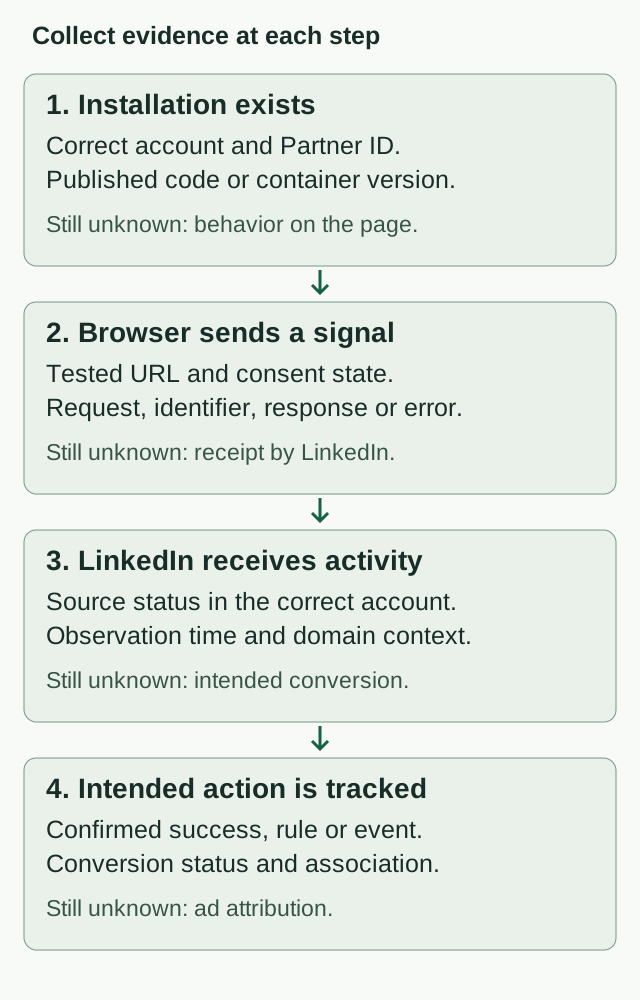
This sequence is our recommended testing method. LinkedIn documents the tag source and conversions separately. Its source status confirms activity from at least one associated domain, so check your actual landing page even when the source is green.
Before you install anything
Choose the advertising account that should receive the data. In Campaign Manager, open Measure → Signals manager → Insight Tag. If the tag has not been created, the source catalog provides the creation option. Use this account’s code or Partner ID throughout the installation. LinkedIn’s current tag-management instructions cover creating the source and finding its installation details.
Next, ask the person responsible for the site where marketing tags are already installed. Check the tag manager, CMS integrations, plugins, and shared site code. Adding a new GTM tag without checking an existing plugin can leave two installations to maintain. LinkedIn recommends one Insight Tag per website, with sharing across accounts where needed.
Write down the landing page, the form location, and the destination after completion. A form embedded from another service or a booking page on another domain needs its own implementation check. Code on your homepage does not establish coverage there.
Before choosing a trigger, confirm the site’s consent requirements and excluded pages with its owner. LinkedIn requires necessary permissions before data is shared and prohibits the tag on pages that collect or contain sensitive data. Its privacy and preparation guidance explains these boundaries. An All Pages trigger must still respect them.
Install the tag
Use GTM when the site already has a maintained Google Tag Manager container and someone can publish it. Use the manual or developer route when the site’s normal deployment process manages the code. Keep the installation in one known place, with a version you can restore.
Install with Google Tag Manager
- In the correct LinkedIn account’s Insight Tag installation panel, choose the tag-manager option and copy the Partner ID. Keep the account open so you can check the ID against the configured tag.
- Open the GTM account and web container used by the target site. Create a new tag and open Tag Configuration → Discover more tag types in the Community Template Gallery.
- Select LinkedIn InsightTag 2.0 and add it to the workspace if needed. Put your account’s Partner ID in its Partner ID field. Use a name that identifies the source and site.
- Open Triggering and select or create the trigger for eligible pages. LinkedIn’s basic example uses All Pages; use the site’s exclusions and consent requirements to determine where firing is allowed. Review the template’s actual consent checks and your consent platform’s mapping before publishing.
- Save and use Preview to test the tag on the target URL. Follow the verification steps below, including a denied-consent case when your policy requires blocking and an allowed case.
- Click Submit and publish the reviewed container version. Record its version and repeat the consent and request tests on the live page outside Preview. A successful draft test does not publish a GTM change.
The template and publication steps come from LinkedIn’s GTM instructions; Google’s Preview documentation explains how to inspect a container before publication. If you are replacing the old LinkedIn template, follow LinkedIn’s migration sequence and check that the old installation is paused in the published result.
Install manually or hand it to your developer
- Open the same account’s Insight Tag installation panel and choose I will install the tag myself. Copy the complete generated snippet. Use the current account’s snippet rather than code copied from a tutorial.
- Give the developer the snippet, eligible pages, consent requirements, and the destinations to test. LinkedIn recommends placing the code before the closing body tag in the global footer. Use the site’s supported code-injection or deployment process.
- Preserve the snippet’s straight quotation marks and code. Have the developer apply the site’s consent controls around the installation through its normal supported method.
- Deploy the reviewed change, record the release, and test the delivered page. Keep the prior release available if the change needs to be rolled back.
See LinkedIn’s manual installation instructions. A CMS setting saved in an editor is not enough: confirm the change reaches the public page you intend to measure.
Verify the installation
Use a browser session where you can inspect the actual page, its consent choice, and its network requests. Keep test evidence private and redact personal data before sharing it with a colleague or AI tool. A network export can contain more than the tracking request you meant to show.
Check consent behavior first
If your site requires opt-in before LinkedIn tracking, test each transition:
- Start a new session before accepting. Open the browser’s developer tools and Network panel, reload the page, and record whether LinkedIn requests occur.
- Grant the relevant consent on the same page without reloading. Record whether a request starts.
- Load another eligible page with consent still granted. Record its requests separately.
- Withdraw consent, then try a new action on the current page. Record whether a new request occurs.
- Visit another page after withdrawal and check again. Record this result separately from the same-page test.
Check the requests themselves; a change in the banner does not tell you what the tag sent.
Compare each result with the requirement your site owner approved. If tracking must remain blocked and a request is sent, that is a configuration problem. If tracking remains blocked while consent is denied, it may be doing exactly what it should.
In GTM, Advanced Settings → Consent Settings shows the selected tag’s built-in and additional checks. Google documents that Not set adds no extra check, while Require additional consent for tag to fire checks the chosen consent types when the trigger runs. The Consent Initialization trigger is for setting consent state before other tags. Google’s consent settings guide explains these controls.
A banner on the page, or a Google consent setting that looks correct, does not establish how the LinkedIn tag behaves. Confirm the selected template and consent platform integration. If a tag was blocked at page load, also test whether granting consent starts it on that page or whether the implementation needs an appropriate later trigger.
Inspect the browser request
In the Network panel, reload the eligible page under the allowed test condition. Look for the LinkedIn script and tracking requests. LinkedIn’s troubleshooting documentation lists domains including snap.licdn.com and px.ads.linkedin.com; search the request list broadly enough to see related calls and redirects.
Distinguish the script download from the outgoing tracking request. A successful download of the JavaScript file only shows that the code was fetched. Open the tracking request and check its destination, the identifier against your account configuration where exposed, the time, and any blocked or failed response. Record what you actually see. A browser extension detecting “LinkedIn,” or GTM showing Fired, does not replace this check.
If there is no request, inspect the trigger, consent state, published version, and browser errors before changing the installation. A Content Security Policy error belongs with the developer responsible for that policy. An extension block can be investigated in a separate clean test session; do not weaken visitor consent controls to make a test pass.
LinkedIn’s tag troubleshooting page covers incomplete snippets, incorrect Partner IDs, blocked destinations, and missing traffic. Save the actual response and error rather than treating one HTTP status as a universal success test.
Check the source in LinkedIn
Return to the correct account and open Measure → Signals manager → Insight Tag. Record the status and when you checked it. LinkedIn says validation can take from a few minutes to 24 hours after an eligible page visit. Keep the visit time beside the status check so you can distinguish waiting from an old observation.
| Source status | LinkedIn’s definition | What to do |
|---|---|---|
| Active | A signal was received in the past seven days | Continue checking the specific page and intended action |
| No recent activity | The last signal was more than seven days ago | Run an eligible visit and inspect its browser behavior |
| Unverified | No signal has been received | Check the installation and allowed test visit; recheck after processing |
These are Insight Tag source statuses. If the source is Active but you cannot identify evidence for the page you tested, keep that page unverified. Activity somewhere under the tag is a narrower fact than coverage everywhere.
Test the conversion you mean to measure
Decide what success means before selecting a rule. For a completed demo request, the test should reach the form’s confirmed success condition. A Submit click with validation errors is a failed submission, even if a click event fires.
Use a page-load conversion when a specific destination reliably represents that completion. Check the final URL against the rule, including redirects and URL conditions. If someone can reach the page without completing the action, decide whether page visits are really the measure you want.
Use an event-specific conversion when the success happens without an appropriate page load. With GTM, LinkedIn’s event-specific setup uses the Partner ID and Conversion ID. The developer or analytics owner needs to connect the event to the application’s actual success signal. A generic button-click trigger cannot establish that a form saved successfully.
In Measure → Conversion tracking, create or review the conversion’s source, method, click/view windows, and attribution model. Review the selected ad sets before saving. LinkedIn may select associations automatically, so check the actual selection against your intended campaigns. LinkedIn’s conversion setup guide covers these choices.
Run both a successful completion and a failed or cancelled attempt. Record whether the intended event occurs in each. For an iframe form, verify what the form provider exposes; LinkedIn notes that iframe buttons do not appear in Website Actions. Do not assume the parent page can observe the form’s success.
Finally, inspect the conversion’s own status. Its Active window is the past three days, rather than the source’s seven-day window. LinkedIn defines No recent activity as four to seven days, Inactive as more than seven days, and Unverified as no detected website activity for the conversion. These conversion status definitions describe signal recency. Your manual test still does not establish that an ad received attribution.
Example: a failed form fires the demo event
In this fictional example, a visitor leaves a required field empty and clicks Submit. The form shows a validation error, but the event tag reports Fired. The intended conversion is a completed demo request.
The trigger is wrong for that goal: it responds to the click even when the form fails. That observation does not tell us whether LinkedIn received or counted the event. The request result, account identifiers, and conversion receipt are still unknown.
The developer’s next test is to find the form’s documented success signal and compare an invalid submission with a valid test submission. The completed-demo event should occur only after confirmed success. Then check its request and LinkedIn receipt separately. The full worked diagnosis shows the observations and handoff fields for this example.
Fix the first failing step
Start with the earliest missing observation. Reinstalling the tag is a poor first response when the real issue is an unpublished container or a form trigger.
| What you observe | Next test | Who should act |
|---|---|---|
| The account has no expected tag or the ID differs | Compare the selected account, tag ownership, and intended sharing with the site’s configuration | Advertising account owner |
| GTM Preview works, but the live page does not | Compare the preview version with the published container and the container loaded by that page | GTM publisher |
| No request while consent is denied | Compare the result with the approved requirement; then test the allowed state | Consent and analytics owner |
| A request is sent when policy requires blocking | Inspect consent defaults, template checks, trigger timing, and any second installation | Consent owner and developer |
| Consent is allowed, but GTM never fires | Check the live container, trigger conditions, consent mapping, and whether grant produces the required trigger | GTM and consent owners |
| The script downloads, but no tracking request follows | Check browser errors, consent behavior, the loaded release, and the snippet or trigger. A script response alone does not show that the tag sent data | Developer or analytics owner |
| GTM says Fired, but the request is blocked | Read the Network/Console error; isolate extension, browser, or site-policy behavior | Analytics owner or developer |
| Browser evidence looks correct, source still Unverified | Confirm the Partner ID and account; retain the visit time and recheck after the documented processing window | Advertising and analytics owners |
| Source Active, no evidence from the landing page | Test that exact URL and domain under the allowed condition | Site owner |
| Source Active, expected conversion absent | Check the actual success action, URL rule/event, conversion ID, and selected ad sets | Analytics and advertising owners |
| A failed form attempt fires the lead event | Move the event to confirmed success and repeat both positive and negative tests | Form developer |
| Evidence predates a new domain or deployment | Repeat the affected checks against the changed version | Release owner |
If the browser evidence and account configuration agree but the source remains unverified after the documented window, send LinkedIn support the specific account/tag reference, tested URL, times, and redacted request evidence. That gives support a reproducible issue to investigate.
Use the verification worksheet and diagnostic prompt
Open the blank worksheet and record one tested account, page, and deployment. Keep the actual observations beside the expected behavior. Leave anything you have not inspected as Unknown.
The worked diagnosis is fictional. It shows how to turn a partial failure into a precise repair request without calling the whole setup verified. Use its structure, not its example facts.
The standalone diagnostic prompt reviews the observations you supply and asks for missing evidence. It cannot inspect your site or advertising account from a pasted status alone. Redact personal data and credentials before providing the record to an AI tool.
Copy the diagnostic prompt
Copy this prompt into your AI tool, then supply your redacted observations. The complete text is also available as a TXT download.
Read or select the full prompt
Once the intended action is working, use the LinkedIn reporting guide to separate advertising delivery, attributed conversions, and CRM outcomes. For audience planning, continue with LinkedIn retargeting. Recheck the relevant parts of this worksheet when you change the form, domain, consent configuration, or tag deployment.