Meta ad account: how to set up the right account and give the right people access
If you need to run Meta ads for a business, start by finding out who owns the ad account. That answer determines whether to create an account, bring an existing account into the business portfolio, or ask its owner for access. An agency working in a client's account usually needs access to the client's asset, not a new account that the agency owns.
Already have an account? Open Meta Ads Manager and select the account from the business asset dropdown at the top. Meta shows its name and ID there. The number after act= in the Ads Manager URL is another way to find the ID. Check that ID against the account in Meta Business Suite settings before changing anything. (Meta: find your ad account ID)
What each Meta account actually is
Your Facebook profile or managed Meta account is how you sign in. A business portfolio groups a company's assets and controls who can manage them. An ad account is the asset used to create and manage ads. A Facebook Page is a separate asset representing the business on Facebook. Ads Manager is the tool you use to work on ads; opening Ads Manager does not tell you which business owns the selected ad account. A partner is another business portfolio, such as an agency's, that the owner can grant access to specific assets. (Meta: business portfolios; Meta: partner assets)
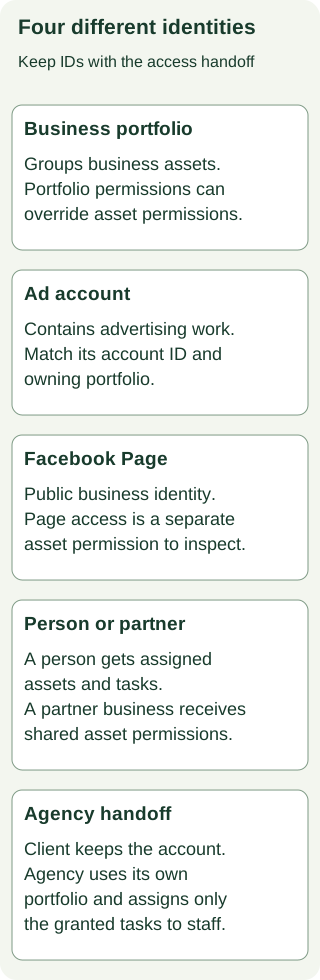
A person signs in to manage a business portfolio. The portfolio can own an ad account and, separately, a Page. The owner can share the ad account with a partner portfolio, which can assign its granted tasks to people on its own team. The ad account stays with its owner.
Full access to one ad account is not full access to its business portfolio. Meta calls portfolio-level full access full control in some step-by-step help articles. Portfolio-level full access can manage people, settings, and assets across the business. Asset-level full access covers that asset. Partial access limits people or partners to assigned tasks. A partner with full access to an asset still cannot share it with a third business; the owner must do that. Ask for the tasks needed to run the work, and identify the scope in the request. (Meta: permissions; Meta: partner assets)
Choose the route before clicking Add
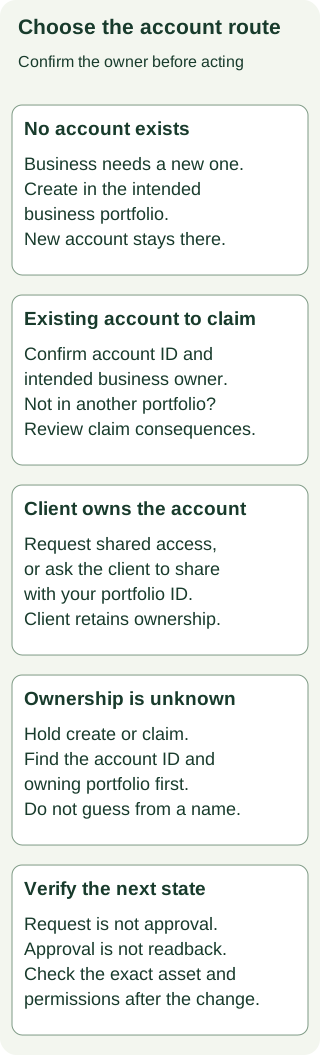
Ask two questions: Does the ad account already exist? Which business owns it? Create when your business needs a new account. Claim an eligible existing account owned by your business. Request access when another business owns it. If you are the owner, you can instead grant a partner the tasks it needs. If the owner or the ID of an existing account is unknown, find that fact before taking an account action. A new account will receive its ID after creation.
Swipe to read all columns, or focus the table and use the arrow keys.
| Situation | Actor and action | What remains true |
|---|---|---|
| The business needs a new account | A person with the required control of its portfolio creates one in that portfolio. | The new account becomes a permanent part of that portfolio. |
| The business already owns an account outside its portfolio | The portfolio controller checks its ID and ownership, then uses Add an ad account if eligible. | Claiming may permanently move the account. An account already in another portfolio cannot be claimed into yours. |
| Another business owns the account | Your business requests access by account ID and task scope; the owner approves, or the owner shares it directly. | The owner keeps its account. Sending a request does not give you working access. |
| You own the account and an agency needs it | A person with full control of the owner's portfolio grants the agency's portfolio access to that ad account. | Your business keeps ownership and chooses the asset permissions. |
These choices appear under Settings → Accounts → Ad accounts → + Add in Meta Business Suite. Meta labels them Create a new ad account, Add an ad account, and Request access to an ad account in another business portfolio. The owner-side partner route starts under Settings → Users → Partners. (Meta: add an ad account; Meta: give a partner access)
Do not infer ownership from the account's display name. Record the exact ad account ID and the business portfolio that owns it. Access to an account does not make your portfolio its owner. If two people give you different IDs, ask them to open the selected account in Ads Manager and reconcile the IDs before submitting a request or claim. An inaccessible list can mean your login lacks access; it does not prove the account is absent.
Create a business portfolio and a new ad account
If your business has no portfolio, the person authorized to manage its assets should go to business.facebook.com on desktop and sign in with a Facebook profile or managed Meta account. In the dropdown below Home, select Create a business portfolio, enter the public business name, and select Create or Create portfolio. A Facebook-profile login also requires the person's name and business email, followed by email confirmation. A managed Meta account needs organization management permission to create a portfolio. Select the new portfolio in Business Suite before moving on. (Meta: create a business portfolio)
For a new ad account, a person with the required portfolio control can then:
- Open that portfolio's Settings → Accounts → Ad accounts and choose + Add → Create a new ad account.
- Enter the account name, time zone, and currency. Agree on the time zone and currency with the business's finance owner before proceeding.
- Choose the intended portfolio and whether the account will be used for My business or Another business or client. Check the portfolio shown on the confirmation screen.
- Have the authorized business representative review Meta's Terms of Service and Advertising Standards. That person can accept and select Create ad account if the business agrees. This is a business decision, not a step to automate from this guide.
- Save the resulting account name and ID and check that the selected portfolio shows the new account. Record the native creation result. Add payment information now or later through Billing & payments, as the business decides.
Meta says a newly created ad account permanently belongs to the chosen portfolio and cannot be deleted or transferred out. Closing it does not remove it from that portfolio or its creation limit. Do not repeat the create step just because a confirmation was lost; first find the account in the chosen portfolio and recover the creation result. Account creation, billing setup, eligibility to advertise, and an ad actually serving are separate checks. (Meta: add an ad account)
Bring in an existing account your business owns
Use Add an ad account only after confirming the account ID, its current owner, and the destination portfolio. The acting person needs full control of the destination portfolio, the portfolio needs capacity for the account, and a prepaid account cannot have a prepaid balance. A person with that control opens Settings → Accounts → Ad accounts → + Add → Add an ad account, enters the ID, reviews the portfolio shown and Meta's terms, then selects Claim ad account if authorized. Meta says a claim may permanently move the account into that portfolio. If another person owns it, they must approve before you can use it. An account already in another portfolio cannot be claimed into yours; use the access route instead. (Meta: add an ad account)
Before calling the handoff done, check the account ID in the destination portfolio and record any required approval and native result. A claim request submitted, an owner's approval, and observed access are three different facts. If the account does not appear, do not create a replacement account to fill the gap.
Get access to an account another business owns
The requesting business needs its own portfolio and the owner's ad account ID. In the requesting portfolio, a person with the right control opens Settings → Accounts → Ad accounts → + Add → Request access to an ad account in another business portfolio. Enter the ID, choose partial access and the specific tasks needed, or choose full control if that scope is actually justified. Select Confirm to send the request. For a client-owned account, the account owner or someone with full control of its portfolio must approve before the agency can use it. Meta says approval is unnecessary if the requester already owns the account or has full control of its owning portfolio; verify that ownership or permission exception for the exact account and actor. (Meta: add an ad account)
The owner can start the share instead. In the owner's portfolio, a person with full control opens Settings → Users → Partners → Add → Give a partner access to your assets, enters the partner portfolio ID, selects the ad account and permissions, then chooses Assign assets. Meta asks the owner to turn on two-factor authentication for this route; another person with full control may need to approve. The partner finds its portfolio ID under Settings → Business portfolio info. Both businesses can check their Settings for the shared asset after the action. (Meta: give a partner access; Meta: find portfolio ID)
If the agency needs to give its employee access, the agency assigns that person within its own portfolio, limited to the tasks the owner granted the agency. Adding a person to a portfolio is a separate route under Settings → People → Invite people; the invited person must accept. It does not turn that person into a partner business or change asset ownership. (Meta: add people)
When the account or option is missing
Check the selected portfolio and account ID first. A person can belong to several portfolios, and the account dropdown can show several ad accounts. If Partners, People, or Add an ad account is unavailable, check whether the signed-in person has full control of the relevant portfolio. Meta's current permission overview calls this full access; some procedure pages still say full control. Check the scope, because full access to an ad account alone does not grant full access to its portfolio. (Meta: permissions)
For a new-account creation error, inspect Business info → Ad account creation limit and Business Support Home for restrictions or missing eligibility. Meta lists the creation limit, an existing account in bad standing, and missing portfolio permission as possible causes. A closed account can still count toward the limit. Use an existing eligible account if it serves the business's purpose; do not create accounts in other portfolios to work around a restriction. (Meta: troubleshoot creation)
If the request was sent but access is missing, ask the owner to check the request and its approval status. If an invitation was sent to a person, have that person accept it, then check the assigned asset and tasks. An approval message alone does not prove that the intended person can select the intended account in Ads Manager. Check the account ID and permissions in both relevant portfolios. (Meta: add an ad account; Meta: add people)
Record the handoff once, with the evidence attached
Use one blank account handoff for the business and account. It has separate fields for the route that fits, whether the next action is ready, what was submitted, what the owner approved, and what was actually observed. The worked handoffs show a new business, an existing owned account, and a client-owned account shared with an agency. They also show a conflicting-ID hold and a completed fictional partner grant.
An account handoff is complete only when the relevant business and account IDs match, the required owner decision is recorded, and the intended access can be observed. For creation, keep the native creation result. For access, keep the request or share result, any required approval, and a later check in Settings and Ads Manager. Record billing readiness separately. Do not put passwords, payment card numbers, or private login recovery details in the handoff.
Prepare your account handoff
Fill in the blank account handoff, using the worked records as examples. Copy this prompt into your AI tool, then paste your completed record. Open the plain-text prompt to select it directly.
Read or select the full prompt
Copy the account handoff review prompt and paste one completed or partial handoff beneath it. It will classify the route, identify the first missing fact or approval, and draft a specific request to the person who can resolve it. It is a planning and review aid. It cannot inspect your Meta account or grant access.
Once the account and access are settled, use the Facebook ad objectives guide to choose a campaign goal. If your next step is connecting an existing account to HubSpot, use the HubSpot and Facebook Ads integration guide. For a separate review of your acquisition path, book a conversation with Maestro. Account access alone says nothing about whether the ads will perform.
Sources and date
Meta Business Help Center pages on portfolio creation, ad account creation, claim, and sharing, partner grants, permissions, person invitations, ad account IDs, portfolio IDs, and creation troubleshooting were checked October 31, 2026. Labels, eligibility, and available tasks can differ by account. Check the current screen before acting.