Facebook Leads Center: Find, Assign, and Export Your Meta Leads
If a Meta lead needs follow-up, open the correct Page in Meta Business Suite and go to Leads Center. Find the submission, open its contact card, assign a person, choose a stage, and set the next action. Then check the CRM for the same submission. A lead marked Qualified in Leads Center can still be missing from your CRM.
This walkthrough is for a lead that already exists. If you are still choosing an offer or building the form, start with our Facebook lead ads guide.
Where to find Leads Center
In Meta Business Suite, confirm the business and Page shown in the account selector are the ones that collected the lead. Click Leads Center in the left menu. If it is not there, open All tools and look under Engage audience. Meta also documents a Page route: open the Facebook Page, choose Business Dashboard, then Leads Center.
The screen offers Pipeline view and Table view. Pipeline shows leads by stage. Table is better for finding one submission, because you can sort by date added, name, source, channel, stage, and owner.
Swipe to inspect the toolbar, or focus it and use the arrow keys.

If you can't see leads or download them
- No Leads Center or no lead data: Meta requires leads access. Page admins have it. Someone who already has access can add a teammate without making them an admin: click the gear icon, then Permissions, then + Add permissions. (Access instructions)
- The download fails: ask someone with full control of the business portfolio whether leads access was customized. If it was, only people assigned access can download, so they need to assign you. If it wasn't, only people with full control of the Page or messaging permissions can download, so ask a person with full control of the Page. (Download guide)
- The file downloads, but some columns are blank: to see all the data, Meta says you need both Page admin permissions and a role on the ad account that ran the lead ad. (Export fields)
If you see Inbox → Leads instead
Inbox → Leads sits next to Messages in desktop Business Suite. Meta describes it as a view of leads from Messenger, WhatsApp, and Instagram Direct conversations. Use it for a conversation lead. For an Instant Form submission, use the routes below.
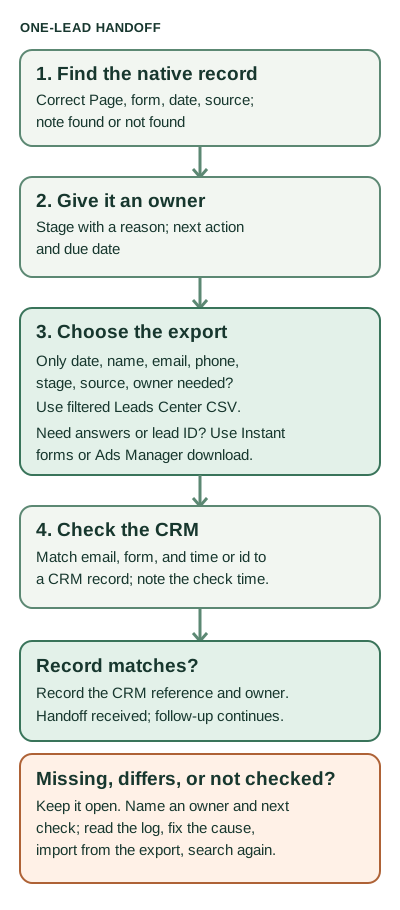
The rest of this page follows one lead along this path.
Find one lead before changing its stage
Open Table view and clear any old filter. Then narrow the list:
- By name: search or sort by Name.
- By form: use Forms. If the requester calls it a "webinar lead" and no form has that name, try Source or Campaign.
- By day: use Select dates (Meta's help calls this filter Date added). Widen it by a day on each side.
- By owner: clear Assigned to. A saved filter for one rep hides everyone else's leads and every unassigned lead.
- By ad: use the search bar's Campaign ID or Ad ID options if you have them.
Example: a rep says a 12 October form lead is gone. The view is filtered to Assigned to = that rep, and the lead was never assigned. Clearing that filter shows it. Nothing was lost.
Stop when you reach one of these results, and write it down:
| Result | What to do |
|---|---|
| Found | Open the contact card and continue below. |
| Hidden by a filter | Clear the filter, then continue. |
| No access | Use the access checks above. |
| Older than 90 days | Lead information is available for only 90 days, and older leads can't be downloaded from Meta. Look in the CRM and earlier downloads. If it isn't there, tell the requester it can't be recovered from Meta. |
| Still not found | Download the form by date range (below). If the lead is in the file but not in Leads Center, work from the file. If it is in neither, check whether it came from another Page or an ad preview, then tell the requester and close the search. |
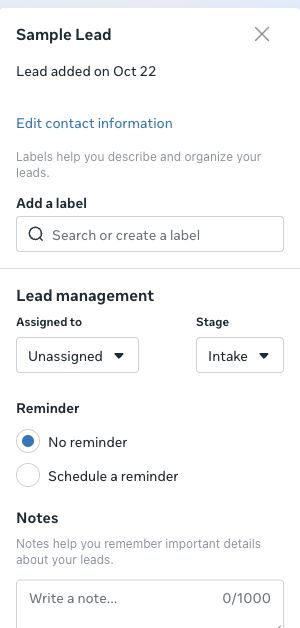
Open the card and compare the date, source, and contact details with the request. In the sample record, the card showed only a day ("Lead added on Oct 22"). For the exact time, use created_time in the form export.
A Complete form label means you can read the form answers on the card. If the source says Paid, click it for the ad or form details. Use the answers the person actually gave. If the form didn't ask about company size or timing, mark those Unknown and make the next action a discovery conversation.
Assign an owner, stage, and next action
On the card, click Assigned to (it reads Unassigned until someone is chosen) and pick a teammate with Leads Center access. Then click Stage. Every new lead starts in Intake. Your team can rename stages in Settings, so check your local funnel before reading an unfamiliar label.
Swipe to read all columns, or focus the table and use the arrow keys.
| Stage | Meta's meaning | A B2B example |
|---|---|---|
| Intake | Still needs evaluating | Demo request; answers not yet reviewed |
| Qualified | Likely a good fit, still needs closing work | Fit and timing both meet your rule |
| Converted | Made an agreement or transaction, or booked | Evaluation booked or contract signed |
| Lost | Conversation ended; may re-engage later | Chose another vendor this year |
| Not qualified | No longer a fit; unlikely to return | Student researching a paper |
Write your rule down so two people would choose the same stage. Here is a fictional rule from AlderGrid Systems: Qualified means the person manages five or more facilities and wants to evaluate within 90 days. Applied to three leads from one form:
Swipe to read all columns, or focus the table and use the arrow keys.
| Form answers | Stage | Why |
|---|---|---|
| 18 facilities; November evaluation | Qualified | Meets both parts |
| 18 facilities; timing left blank | Intake | Timing unknown, so the next action is to ask |
| Student; no facilities | Not qualified | Fails the rule |
Add a note with the reason. Use Schedule a reminder when the follow-up date matters. Labels can help you find a segment later. Bulk edit changes owners and stages for many leads, but when you're investigating a missing lead, handle that record alone so you know which submission you checked.
Choose the download that contains the fields you need
Swipe to read all columns, or focus the table and use the arrow keys.
| You need | Use | The file has | The file lacks |
|---|---|---|---|
| Owners and stages for a working list | Leads Center Download icon | Date, name, email, phone, stage, source, owner, for your current filter | Form answers, lead ID, exact form details |
| Form answers or lead ID, one form | All tools → Instant forms → Download | id, created_time, ad, campaign, and form columns, is_organic, platform, then your custom questions | Stage and owner |
| Several campaigns, or location and language filters | Ads Manager: Ads tab → On-Facebook leads in Results | The same form-level columns | Stage and owner |
In Instant forms, choose Download by date range when you're looking for one lead. Download new leads returns only leads since the last download, so a lead someone already exported won't appear. The download covers a whole form and date range, not one person. Choose CSV or XLS, and open the file before you map it to anything.
In Ads Manager, if On-Facebook leads isn't a link, you're probably on the Campaigns or Ad sets tab rather than Ads.
Meta doesn't document a form download for conversation leads. Its download instructions cover lead ads with instant forms. For a click-to-message or organic message lead, use the card, the conversation, and the Leads Center CSV. A Complete form label still shows any answers on the card.
Download within 90 days. For Instant Forms the clock starts when the person submits, and expired leads can't be downloaded. Download on a schedule so an audit doesn't depend on a file you can no longer get.
If ad_id or adset_id is missing, Meta lists three causes: organic reach, an ad preview submission, or no advertiser access on that ad account. It doesn't mean the lead was lost.
Check the CRM for this submission
A receipt is anything in the CRM that proves this submission arrived: a record whose email, form, and time match, or a log row for it. The strongest match is id and created_time from the form export, if your CRM stores them. Otherwise search by email, then confirm the form and date on the record. A green sync setting isn't a receipt, and neither is a Meta stage.
Record one result:
- Received: the record matches. Save its link or ID and the time you checked.
- Values differ: a record for this submission exists, but a field disagrees, such as the phone number. Contact details can be edited on the card, so compare with the form export first.
- Missing: you searched and found nothing.
- Not checked: nobody has looked yet.
- Not required: your team's rule says this stage doesn't need a CRM record, such as Not qualified.
A record with a different form, or a time that doesn't fit, is a different submission rather than a receipt. Record the result as missing and keep searching.
When the lead is in Meta but missing from the CRM
Keep the human follow-up moving while you diagnose this. Open your integration or import log for the submission time. These are the checks we'd use; exact screens vary by CRM.
Swipe to read all columns, or focus the table and use the arrow keys.
| What the log shows | Likely cause | What to do |
|---|---|---|
| No run or entry for that time | Connection was down or this form isn't in the sync | Fix the connection or add the form. Import the lead from the form export. |
| A failed entry for this lead | A required field or mapping rejected it | Fix the mapping. Reimport from the export. |
| A successful entry, but search finds nothing | It merged into an existing contact or landed in another queue | Search by email across all records. Use that record as the receipt, and fix routing if it's wrong. |
| A record with different values | Mapping error, or someone edited one side | Compare with the export. Fix the mapping, and don't overwrite a rep's newer edit without checking. |
Then search again, and record the new reference and time. Test the fix on the next lead from that form, since you can't assume the sync will fill in past leads.
Two worked cases
These companies and records are fictional.
AlderGrid Systems: received. A request arrives through "Demo request — facilities teams" on October 28.
| Time (ET) | Step |
|---|---|
| Oct 28, 10:14 a.m. | Lead submitted, per created_time in the export |
| 10:50 a.m. | Sales ops finds it by form and day; answers show 18 facilities and a November evaluation |
| 10:55 a.m. | Assigned to Maya Chen, moved from Intake to Qualified under the rule above; Maya will call and send an evaluation outline by Oct 29, 3:00 p.m. |
| 11:00 a.m. | Instant forms date-range download, because sales needs the answers; id and created_time copied |
| 11:07 a.m. | CRM inbound queue shows record CRM-6842 with the same email, form, and time. Result: received |
The handoff closes. Maya's sales follow-up stays open until Maya records the outcome.
BirchSignal Analytics: missing, then recovered. A request arrives through "Analytics consultation request" on October 30.
| Time (ET) | Step |
|---|---|
| Oct 30, 2:42 p.m. | Lead submitted |
| 3:05 p.m. | Found in Leads Center; Noor Patel takes it. Fit isn't evaluated, so it stays in Intake, with follow-up due Oct 31, noon |
| 3:10 p.m. | Leads Center CSV lacks the current-stack answer sales wants |
| 3:18 p.m. | CRM search by email finds nothing. Result: missing. Noor owns a check at 9:00 a.m. |
| 3:25 p.m. | Instant forms download gives the answer, id, and created_time |
| Oct 31, 9:00 a.m. | Log has no entry for this form: it was never added to the sync |
| 9:20 a.m. | Noor adds the form and imports the lead from the export, creating CRM-7119 |
| 9:25 a.m. | Search finds CRM-7119 with the same email, form, and time. Result: received. Noor sets a check on the next lead from this form |
Noor's follow-up kept its noon deadline throughout. The stage stays Intake until Noor evaluates fit.
For HubSpot specifics, see our HubSpot and Facebook ads integration guide. For lead quality and revenue across campaigns, use the Facebook ads reporting template.
Complete your own one-lead check
Open the blank worksheet and fill it in for your lead, using the filled examples as a guide. Or copy this prompt, add your facts, and get the next action and status: plain-text prompt.
Read or select the full prompt
Use the prompt on sanitized records. Don't paste a prospect's contact details into a tool your company hasn't approved.
The one-lead check to keep
Before closing a lead, answer four questions. Which Page and submission? Who owns the next action? Which export has the fields you need? Where is the CRM receipt? If the receipt is missing, name an owner and a time to check again.
If missing or poor-fit Meta leads are hurting your funnel, request a Demand Gen Roast to review the campaign and handoff path.
How this was checked: we inspected Leads Center in Meta Business Suite on October 31, 2026, on an existing sample record. We didn't change that record, download from it, or send it to a CRM. The Page route, stage meanings, CSV fields, and 90-day limit come from Meta's Leads Center guide and download guide; form export columns come from its export fields guide. The receipt method, log table, qualification rule, conversation-lead route, still-not-found steps, and close rules are our recommendations, not Meta's. Your menus may differ.